
Order Matching Simulator User Guide
In medium- and high-frequency strategies, we often encounter the following situation: strategies that perform well in backtesting fall short of expectations once deployed in live trading. One of the most important reasons is that transaction cost has been underestimated. To simulate real-world trading costs more accurately, we can introduce an order matching simulator into the medium- and high-frequency backtesting process. The DolphinDB‘s order matching simulator plugin can be applied to medium- and high-frequency market data, enabling more realistic evaluation and prediction of strategy performance in live trading environments and facilitating targeted optimization.
1. Introduction to the Order Matching Simulator
The primary function of the order matching simulator is to simulate order placement and cancellation at a given point in time, and to return the corresponding execution results. Unlike the streaming engines in DolphinDB, the order matching simulator is provided as a plugin. Its logical architecture is shown in the figure below.
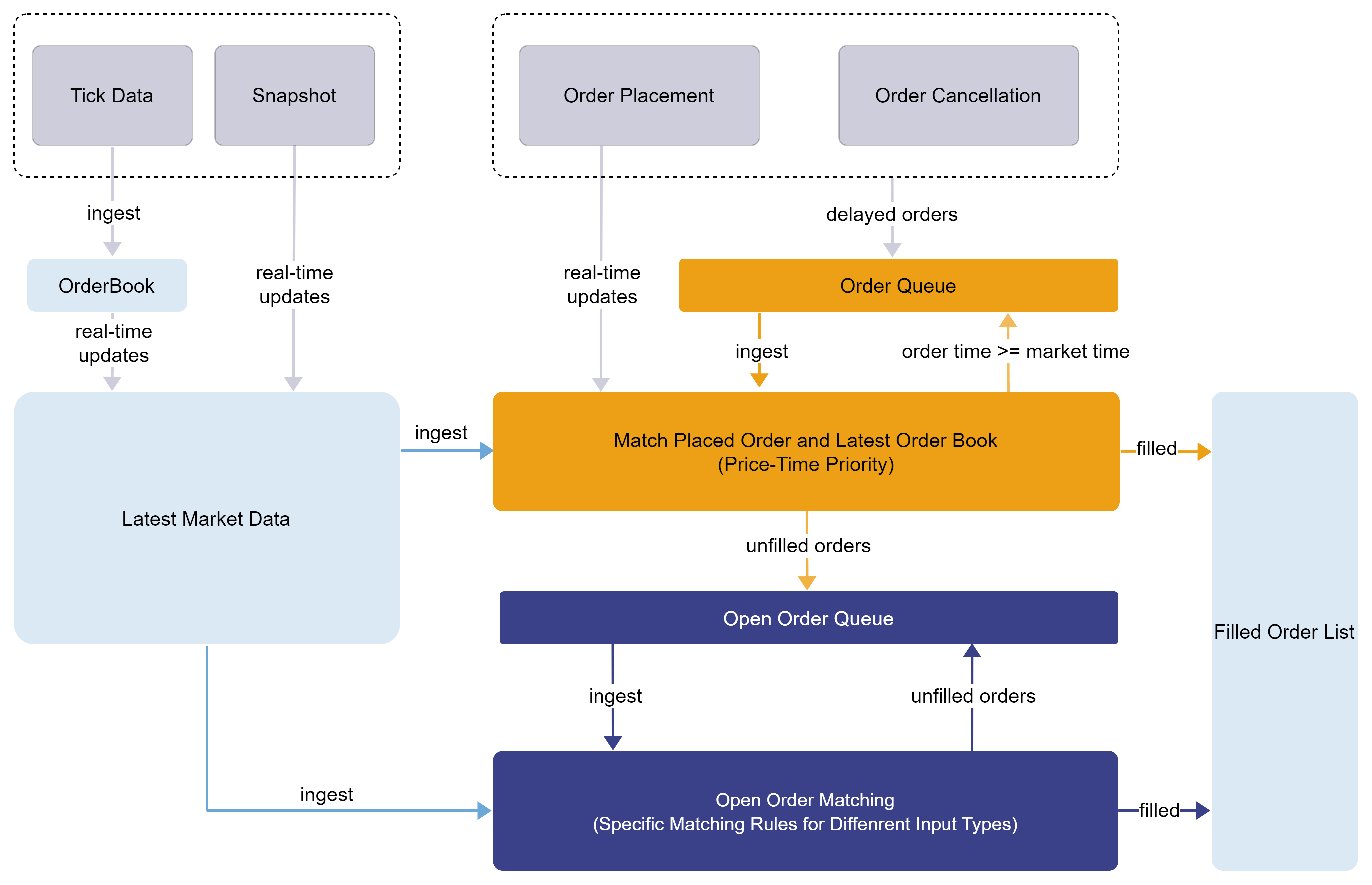
The order matching simulator takes two inputs: the market data and the orders placed by the user. It simulates order matching according to the configured matching rules. Execution results are written to the trade details output table, including partial fills, order rejections, and order cancellations. Any unfilled portion remains pending for subsequent matching or cancellation.
-
Supports configurations such asfull ratio and latency.
-
When multiple user orders on the same side are matched simultaneously, executions follow price-time priority.
-
When the market data is tick-by-tick data, the matching engine builds the market order book in real time. When a user order arrives, it is immediately matched against the order book to generate execution information. Any unfilled portion then joins subsequent market orders and executed orders, and is matched thereafter according to price-time priority.
-
When the market data is snapshot data, a user order is immediately matched against the order book upon arrival, generating execution information. Depending on the order matching simulator configuration, any unfilled portion may continue to be matched against subsequent market snapshots.
-
Matching mode 1: Match against the latest traded price and the opposite-side order book at the configured ratio
-
Matching mode 2: Match against the list of trades within the interval and the opposite-side order book
-
Supported user order types include limit, market, and cancel orders. Different combinations of order types and market data types correspond to different matching rules; see later sections for details.
2 Table Schema
When creating an order matching simulator, you must specify the schema for the input tables (market data and user orders) and the output table (trade details).
For input tables, the order matching simulator requires specific column names. If the column names in a user-defined market data table do not conform to the required schema, they can be mapped via the quotationColMap dictionary. Similarly, if the column names in a user-defined user order table do not conform to the required schema, they can be mapped via the userOrderColMap dictionary.
For the output table, the order matching simulator does not require specific column names.
2.1 Snapshot Data
For snapshot mode, the table must include the following columns.
| Name | Type | Description |
|---|---|---|
| symbol | SYMBOL | Stock symbol |
| symbolSource | SYMBOL | Exchange: SZSE or SSE |
| timestamp | TIMESTAMP | Timestamp |
| lastPrice | DOUBLE | Last price |
| upLimitPrice | DOUBLE | Upper limit price |
| downLimitPrice | DOUBLE | Lower limit price |
| totalTradeQtyAtBid | LONG | Total executed bid quantity for the interval |
| totalTradeQtyAtOffer | LONG | Total executed ask quantity for the interval |
| bidPrice | DOUBLE[] | Bid price list |
| bidQty | LONG[] | Bid quantity list |
| offerPrice | DOUBLE[] | Ask price list |
| offerQty | LONG[] | Ask qantity list |
| tradePrice | DOUBLE[] | Trade price list (required in matching mode 2) |
| tradeQty | LONG[] | Tradequantity list (required in matching mode 2) |
| highPrice | DOUBLE | Highest price (available in futures/options instruments and the general version) |
| lowPrice | DOUBLE | Lowest price (available in futures/options instruments and the general version) |
Notes:
-
For stock market data, tradePrice and tradeQty are required in matching mode 2 but optional in matching mode 1.
-
The futures/options and general version include two additional columns: highPrice and lowPrice.
-
In the general version, both tradePrice and tradeQty are of LONG type.
2.2 Tick-by-Tick Data
For tick-by-tick mode, the table must include the following columns:
| Name | Type | Description |
|---|---|---|
| symbol | SYMBOL | Stock symbol |
| symbolSource | SYMBOL | Exchange: SZSE or SSE |
| timestamp | TIMESTAMP | Timestamp |
| sourceType | INT | 0 indicates order; 1 indicates transaction |
| orderType | INT |
order:
transaction:
|
| price | DOUBLE | Order price |
| qty | LONG | Order quantity |
| buyNo | LONG | For transactions, this field corresponds to the original data; for orders, it contains the original order number and has no actual meaning. This redundant column is added in Shenzhen Stock Exchange data to align with the Shanghai Stock Exchange data format. |
| sellNo | LONG | For transactions, this field corresponds to the original data; for orders, it contains the original order number and has no actual meaning. This redundant column is added in Shenzhen Stock Exchange data to align with the Shanghai Stock Exchange data format. |
| direction | INT | 1 (buy) or 2 (sell) |
| seqNum | LONG | Tick-by-tick data sequence number |
The user order table must include the following columns:
| Name | Type | Description |
|---|---|---|
| symbol | SYMBOL | Stock symbol |
| timestamp | TIMESTAMP | Timestamp |
| orderType | INT |
SSE:
SZSE:
Minute-level and dailymodes:
|
| price | DOUBLE | Order price |
| qty | LONG | Order quantity |
| direction | INT | 1 (Buy) or 2 (Sell) |
| orderID | LONG | User order ID, only relevant for cancellations |
The trade details output table (tradeOutputTable) stores the execution results of orders written by the engine. You can define the table in the following order (the table name can be changed, but the column types and their order must remain unchanged, as each column has a specific meaning.
| Name | Type | Description |
|---|---|---|
| orderId | LONG | ID of the executed order |
| symbol | STRING | Stock symbol |
| direction | INT | 1 (Buy), 2 (Sell) |
| sendTime | TIMESTAMP | Order submission time |
| orderPrice | DOUBLE | Order price |
| orderQty | LONG | Order quantity |
| tradeTime | TIMESTAMP | Execution time |
| tradePrice | DOUBLE | Execution price |
| tradeQty | LONG | Executed quantity |
| orderStatus | INT |
Whether the user order was fully executed
|
| sysReceiveTime | NANOTIMESTAMP | System time when order is received |
| rejectDetails | STRING | Rejection reasons for user orders and user cancellations |
| openVolumeWithBetterPrice | LONG | Total unfilled order volume in the market at prices better than the order price |
| openVolumeWithWorsePrice | LONG | Total unfilled order volume in the market at prices worse than the order price |
| openVolumeAtOrderPrice | LONG | Total unfilled order volume in the market at the order price |
| priorOpenVolumeAtOrderPrice | LONG | Total unfilled order volume in the market at the order price with priority ahead of this order |
| depthWithBetterPrice | INT | Depth levels of open orders better than the order price |
| receiveTime | TIMESTAMP | Latest market data timestamp when the order was received |
| startMatchTime | NANOTIMESTAMP | Start time of order matching |
| endMatchTime | NANOTIMESTAMP | End time of order matching |
Note:
-
When outputRejectDetails is set to true, the output table will include the rejectDetails column.
-
When outputQueuePosition is set to true, the output table will include the following five columns: openVolumeWithBetterPrice, openVolumeWithWorsePrice, openVolumeAtOrderPrice, priorOpenVolumeAtOrderPrice, and depthWithBetterPrice.
-
When outputTimeInfo is set to true (see the config parameter description for this interface), the columns receiveTime, startMatchTime, and endMatchTime are included in the output table.
For descriptions of other fields in the interfaces, see the Plugin Interface Manual .
3 Order Matching Rules
The order matching simulator follows the exchange's auction trading rules for securities, matching trades based on price-time priority. Specifically, under the price priority rule, buy orders with higher prices are matched before those with lower prices, while for sell orders, those with lower prices take precedence over higher-priced ones during matching. Under the time priority rule, when orders are at the same price, the order that arrives first is matched first.
Based on user-defined parameters (such as price matching depth and latency), the order matching simulator performs order matching on submitted simulated orders.
The currently configurable parameters are as follows:
| Parameter | Description | Remarks |
|---|---|---|
| dataType |
Market data type:
|
Default: 1 |
| orderBookMatchingRatio | Fill ratio relative to order book volume | Default: 1; must not be less than 0 |
| depth | Order book depth used for limit order price matching |
Default: 10; For tick-by-tick market data, the maximum value is 50; |
| latency | Order latency, in milliseconds |
Default: 0;
|
| outputOrderBook | For tick-by-tick market data, specifies whether to output the synthesized order book at the configured frequency |
Default: 0; 0 (disabled) or 1 (enabled); Not applicable to snapshot market data; |
| outputInterval | When order book output is enabled, this parameter specifies the minimum interval (in milliseconds) between consecutive order book outputs. |
Default: 1000; Not applicable to snapshot market data; |
| matchingMode | In snapshot mode, two matching modes are available: |
Default: 1; 1 (match orders using mode 1) or 2 (match orders using mode 2); Not applicable to tick-by-tick market data; |
| matchingRatio | In snapshot mode, the interval fill ratio indicates the proportion of trades within the snapshot interval. |
By default, it is same as orderBookMatchingRatio; Not applicable to tick-by-tick market data; |
| enableOrderDetailsAndSnapshotOutput | Whether to output to the composite output table |
Default: 0; When this parameter is set to 1, both synthesized snapshot data and trade detail tables can be output in tick-by-tick mode; Not applicable to snapshot market data; |
| outputTimeInfo | Whether to include the following columns in the trade output table: startMatchTime and endMatchTime |
Default: 0; 0 (disabled) or 1 (enabled); |
| cpuId | The ID of the CPU core to which the thread is bound; the binding
is performed only on the first call to DolphinDB's
appendMsg method or when invoking the order
matching simulator’s interface insertMsg . |
Default: -1 |
The order matching rules for limit orders and market orders are described separately below.
3.1 Limit Order Matching Rules
Different order matching rules are applied to limit orders depending on the market data type.
3.1.1 Snapshot Market Data
When the market data is snapshot data, the order matching process is as follows:
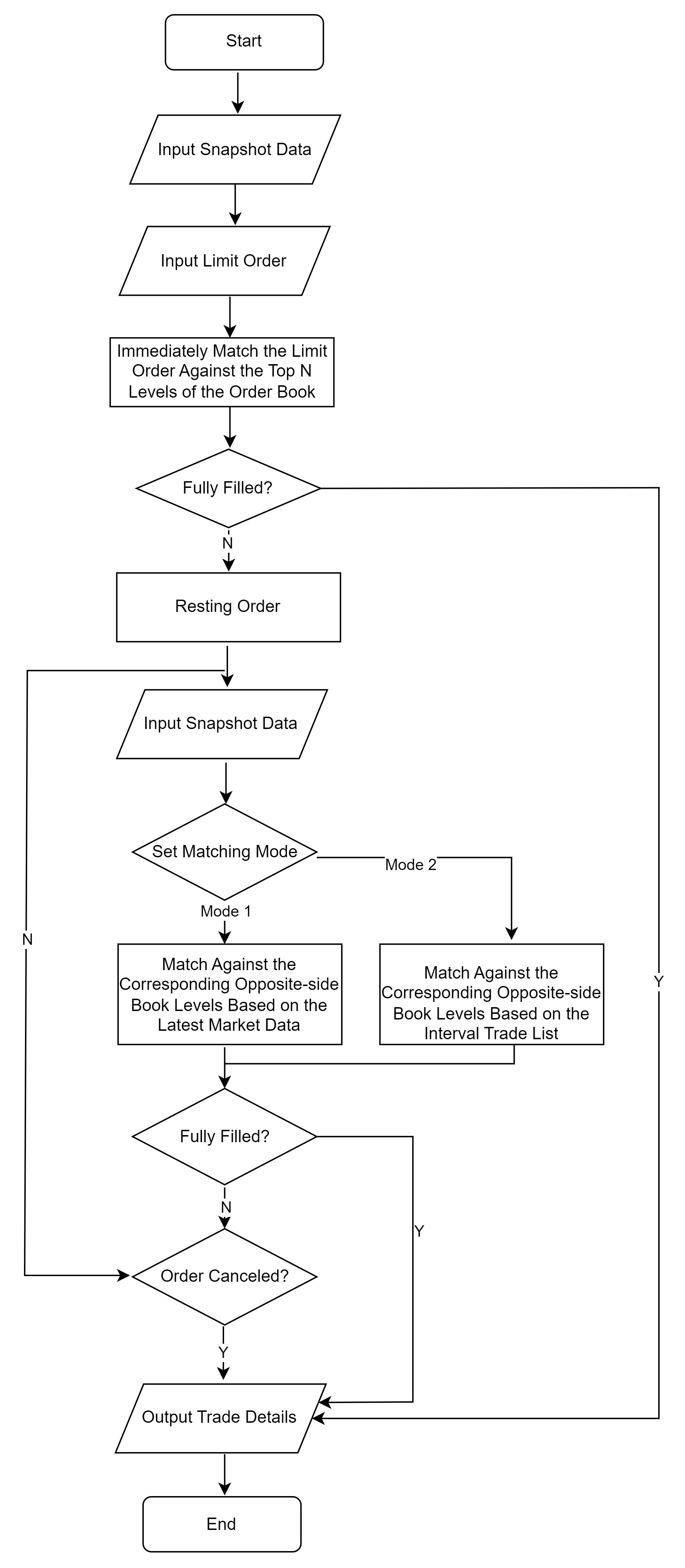
1. Immediately match the limit order against the top N levels of the order book:
-
Buy orders: When the order price ≥ Level 1 ask price, the order is matched sequentially against the levels of the ask side. The execution price is the price at the corresponding book level. The execution quantity is the minimum of: (ask level quantity * level fill ratio) and (order quantity - already filled quantity). If the order is not fully filled, it then enters the order resting phase (i.e., orders queued in the order book awaiting matching). The order is placed first in the queue at that price level, meaning there is no quantity ahead of it, and then enters the order matching phase.
-
Sell orders: when the order price ≤ Level 1 bid price, the order is matched sequentially against the levels of the bid side. The execution price is the price at the corresponding book level. The execution quantity is the minimum of: (bid level quantity * level fill ratio) and (order quantity - already filled quantity). If the order is still not fully filled, it then enters the order resting phase. The order is placed first in queue at that price level, meaning there is no quantity ahead of it, and then enters the order matching phase.
2. Resting Orders
If an order’s price matches the levels on the same side of the order book, it enters the order resting phase. The quantity ahead of this order equals the total quantity at the same price level. The order then proceeds to the order matching phase.
3. Order Matching Stage (Unfilled or Partially Filled Portion)
-
Order Matching Mode 1
-
If the fill ratio is set to 0, the process is the same as in Step 1. The order is matched against the corresponding opposite-side book levels based on the latest market data, with the execution price determined by the order’s limit price. Simulated order matching ends when the order is fully filled or at the end of the trading day, whichever occurs first. Any unfilled or partially filled order may be canceled upon receipt of a cancellation request.
-
If the fill ratio is greater than 0, matching is performed as follows:
-
Matching is performed based on the latest price and latest book from the snapshot market data:
-
When the latest price equals the order price, the system first deducts the quantity ahead of the order from the interval traded volume, and this portion is marked as the current traded volume. When the quantity ahead of the order falls to 0, the user's order begins to execute. The execution price is the order price, and the execution quantity is the smaller of the user's order quantity and the current traded volume multiplied by the fill ratio.
-
When the latest price is more favorable than the order price (for buy orders, latest price < order price; for sell orders, latest price > order price), the execution price is the order price, and the execution quantity is the smaller of the user's order quantity and the actual traded volume during the interval multiplied by the fill ratio.
-
Any remaining unfilled portion is then matched against opposite-side book levels by price, with the execution price set to the order price.
-
The matching continues until the order is fully filled or the market closes for the day, any unfilled or partially filled order may be canceled upon receipt of a cancellation request.
-
-
-
Order Matching Mode 2
Matching is performed based on the interval trade list and the latest book in the snapshot market data, following the price-time priority principle:-
For a user's buy order, order matching is performed against the trade list. Trades in the list with prices less than or equal to the user's order price are eligible for matching. The system first deducts the quantity ahead of the user's order (that is, after subtracting the same-price market quantity ahead of the order, the remaining quantity following the user's order is marked as the current traded volume). When the current traded volume is greater than 0, the user's order can be filled. The execution price is the order price, and the execution quantity = min(user's remaining order quantity, current traded volume).
-
For a user's sell order, order matching is performed against the trade list. Trades in the list with prices greater than or equal to the user's order price are eligible for matching. The system first deducts the quantity ahead of the user's order (that is, after subtracting the same-price market quantity ahead of the order, the remaining quantity following the user's order is marked as the current traded volume). When the current traded volume is greater than 0, the user's order can be filled. The execution price is the order price, and the execution quantity = min(user's remaining order quantity, current traded volume).
-
Any remaining unfilled portion is then matched against opposite-side book levels by price, with the execution price set to the user's order price and the execution quantity = min(user's remaining order quantity, matched quantity * fill ratio).
-
If the order is not yet fully filled, update the queued order quantity at the same price as the user's order for orders ahead of the user's order in the queue:
-
Matching continues until the order is fully filled or the market closes for the day, any unfilled or partially filled order may also be canceled upon receipt of a cancellation request.
-
3.1.2 Tick-by-Tick Market Data
When the market data is tick-by-tick, the order matching process is as follows:
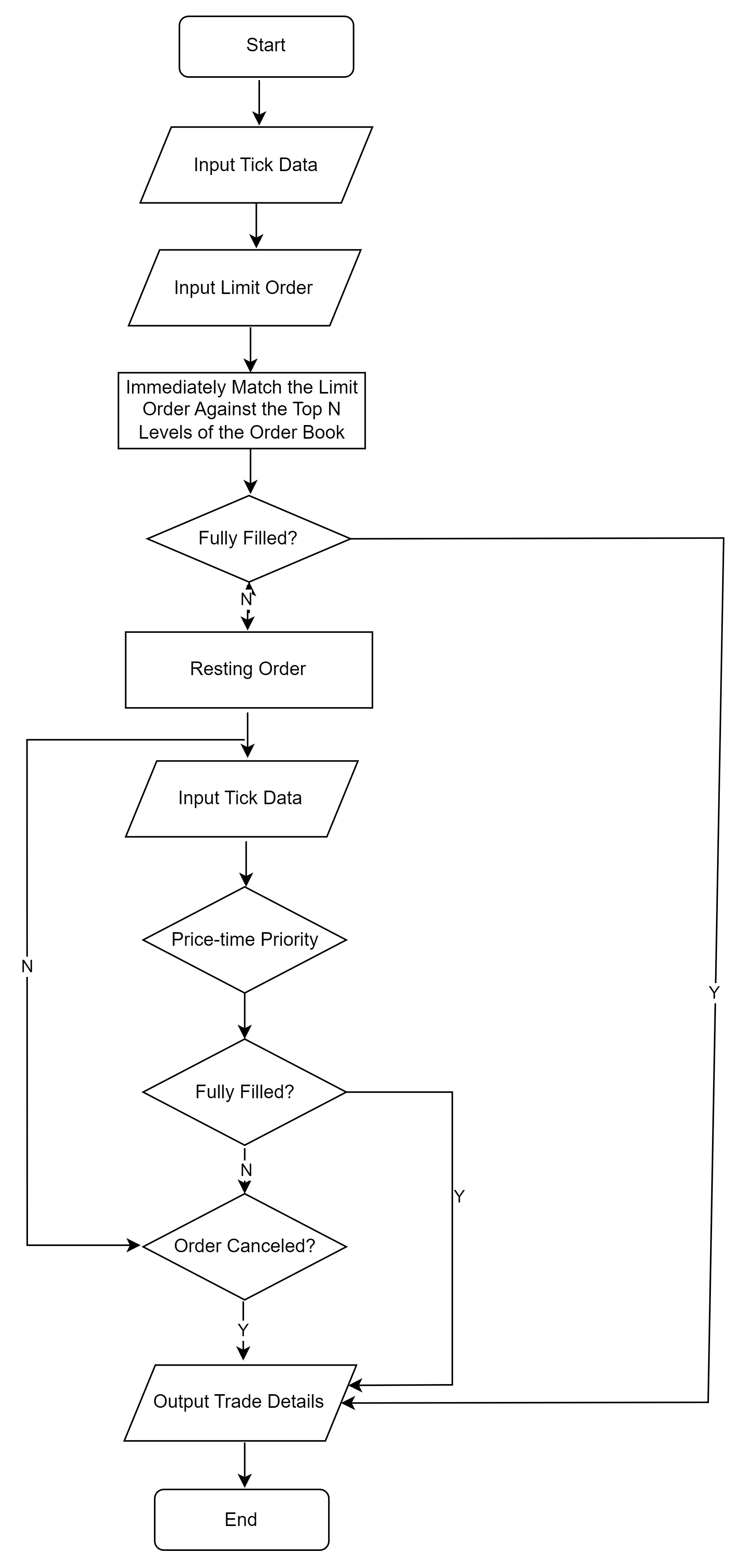
- First, the limit order is matched immediately against the top N levels of the order book data (order matching may be performed according to the configured fill ratio).
- Any unfilled or partially filled portion is then matched in accordance
with the principles of price-time priority.
- For subsequent tick-by-tick data, user orders are matched against incoming orders at the opposite side of the book following price-time priority.
- An order that is unfilled or partially filled may also be canceled upon receipt of a cancellation request.
- Matching continues until the order is fully filled or the market closes for the day.
3.2 Market Order Matching Rules
Market orders are matched immediately against the top N levels of the order book, following the specific trading rules of the SSE or the SZSE.
3.2.1 SSE Matching Rules
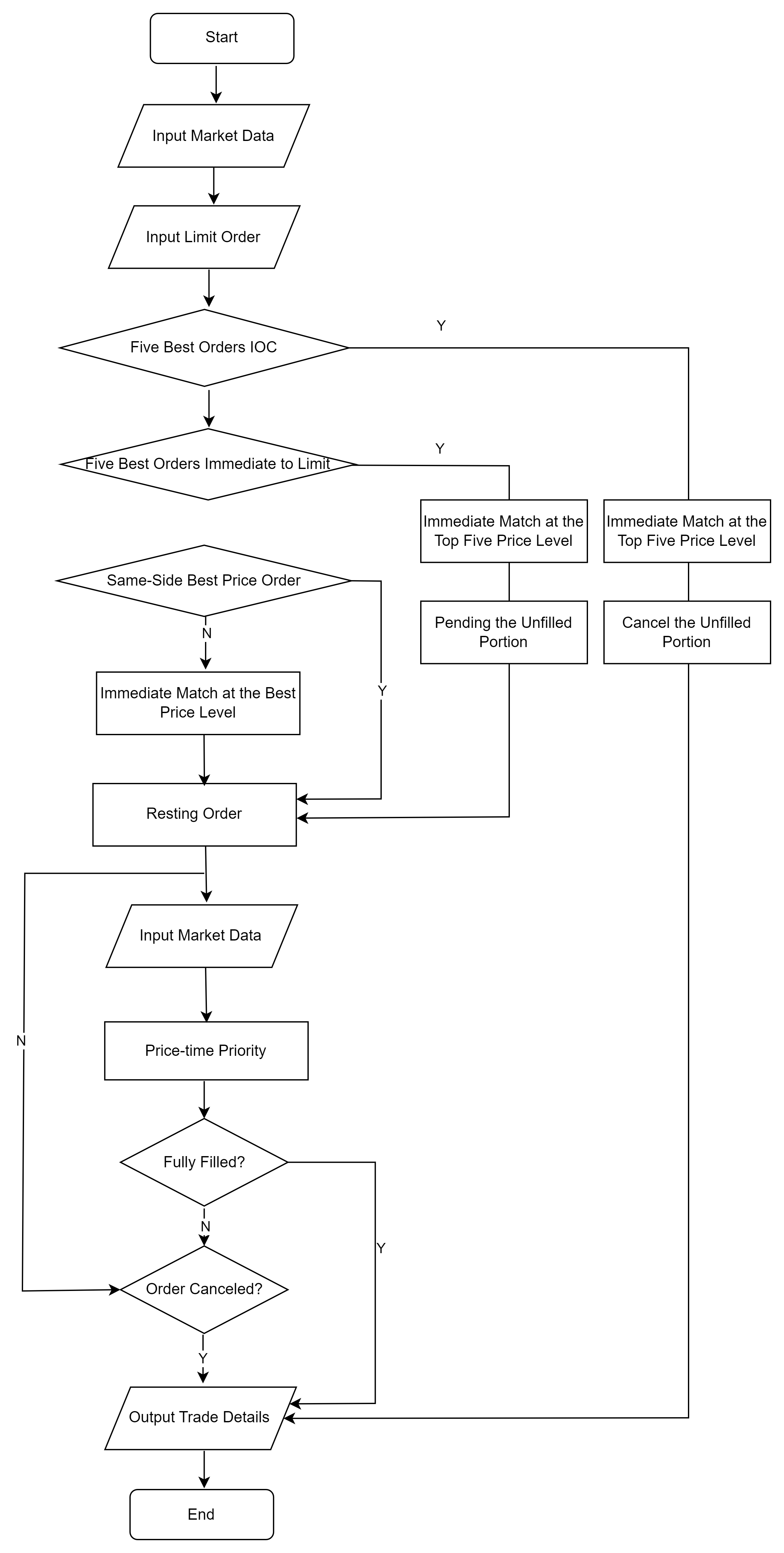
The SSE market order trading rules are as follows:
-
Five Best Orders Immediate or Cancel (IOC): an order that is executed in sequence against the current five best prices on the opposite side. If any portion of the order remains unfilled after execution, the unfilled portion is canceled automatically.
-
Five Best Orders Immediate to Limit: an order that is executed in sequence against the current five best prices on the opposite side. Any remaining unfilled portion is converted into a limit order at the latest traded price on the same side in the market order book; if none of the orders is executed, it is converted into a limit order at the best same-side price in the market data; if there is no same-side order, the order is canceled.
-
Same-Side Best Price Order: an order whose quotation price will be the best price on the same side in the central order book when such order enters the SSE trading system. If there is no corresponding order on the opposite side, the order is canceled automatically.
-
Opposite-Side Best Price Order: an order whose quotation price will be the best price on the opposite side in the central order book when such order enters the SSE trading system. If there is no corresponding order on the opposite side, the order is canceled automatically.
3.2.2 SZSE Matching Rules
The SZSE market order trading rules are as follows:
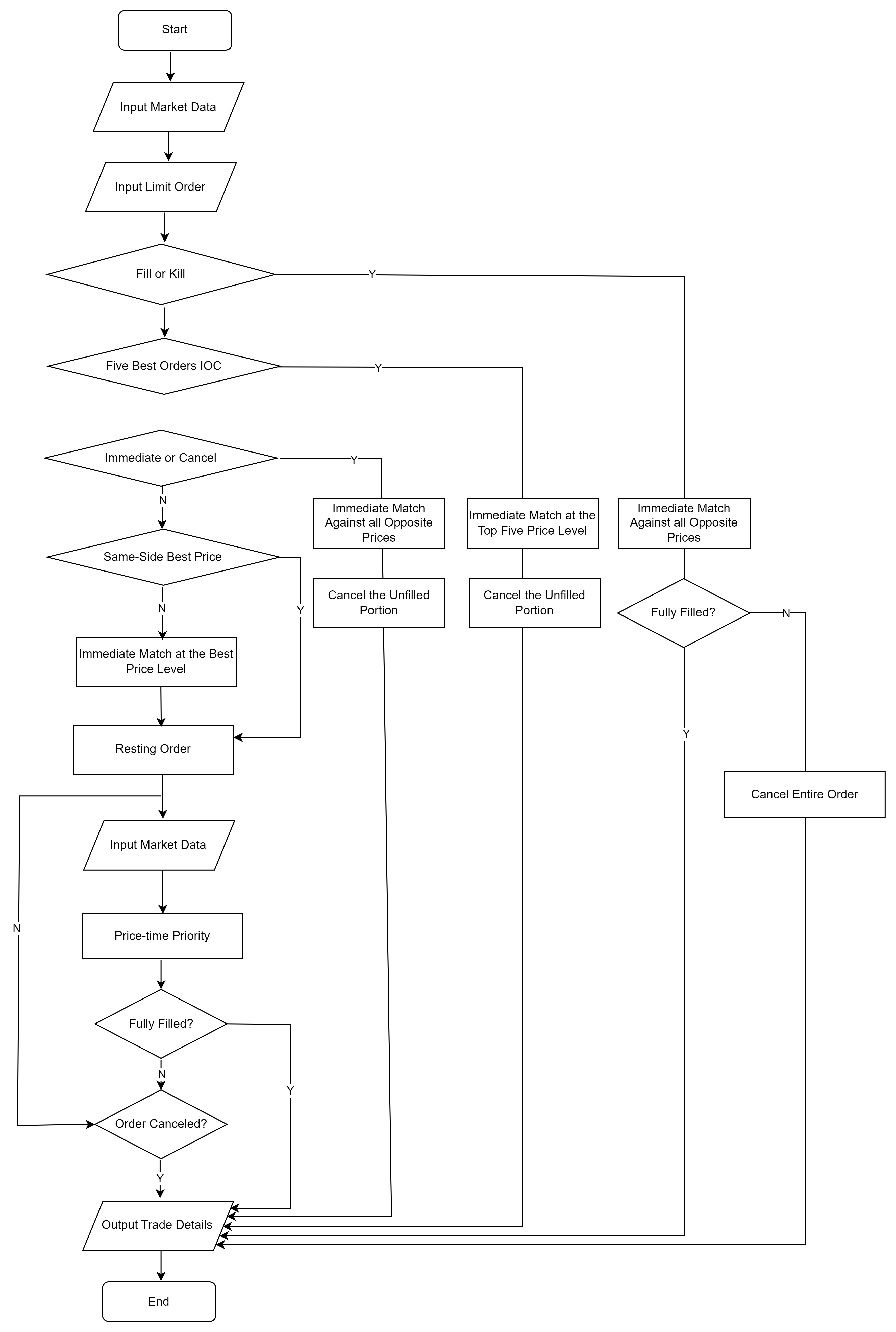
-
Fill or Kill (FOK): trades are executed at the opposite prices. If, at the time the user submits the order, the opposite-side market orders in the latest market-data order book can fully fill the order through sequential execution, the trades are executed sequentially; otherwise, the entire order is cancelled automatically.
-
Five Best Orders Immediate or Cancel (IOC): executed in sequence against the current five best prices on the opposite side. Any unfilled portion is canceled automatically.
-
Immediate or Cancel (IOC): an order that is executed in sequence against all the orders on the opposite side in the central order book at the time the order is routed into the Exchange trading system. Any unfilled portion is automatically canceled.
-
Same-Side Best Price: an order whose quotation price is set at the best price on the same side in the central order book at the time the order is routed into the Exchange trading system.
-
Opposite-side Best Price: an order whose quotation price is set at the best price on the opposite side in the central order book at the time the order is routed into the Exchange trading system.
4 Use the Order Matching Simulator
To use this feature, please contact DolphinDB Technical Support to request a license file for the order matching simulator.
4.1 Create and Configure the Order Matching Simulator
Using the order matching simulator involves five main steps: modifying the configuration file, defining the schemas of the market data table and user order table and configuring column-name mappings, defining output tables such as the trade detail table, creating the engine, and ingesting data into it. The following example uses tick-by-tick market data to demonstrate how to use the order matching simulator.
-
Configure the order matching simulator.
config = dict(STRING, DOUBLE);
config["latency"] = 0;                     //User order latency is 0
config["orderBookMatchingRatio"] = 1;      //Trade fill ratio when matching against the order book
config["dataType"] = 0; //Market data type: 0 indicates tick-by-tick, and 1 indicates snapshot-
Create the corresponding column mapping dictionaries based on the schemas of the market data table and the user order table:
dummyQuoteTable = table(1:0, `symbol`symbolSource`time`sourceType`orderType`price`qty`buyNo`sellNo`direction`seqNum,
                                [STRING, STRING, TIMESTAMP,INT, INT, DOUBLE, LONG, LONG, LONG, INT, LONG])
quoteColMap = dict(`symbol`symbolSource`timestamp`sourceType`orderType`price`qty`buyNo`sellNo`direction`seqNum,
                   `symbol`symbolSource`time`sourceType`orderType`price`qty`buyNo`sellNo`direction`seqNum)
dummyUserOrderTable = table(1:0, `symbol`time`orderType`price`qty`direction`orderId,
                                  [STRING, TIMESTAMP, INT, DOUBLE, LONG, INT, LONG])
userOrderColMap = dict( `symbol`timestamp`orderType`price`orderQty`direction`orderId,
`symbol`time`orderType`price`qty`direction`orderId)-
Define the trade output table and the snapshot output table.
tradeOutputTable  = table(1:0, `OrderSysId`Symbol`Direction`SendingTime`LimitPrice`VolumeTotalOriginal`TradeTime`TradePrice`VolumeTraded`OrderStatus`orderReceiveTime,
                               [LONG, STRING, INT, TIMESTAMP,DOUBLE,LONG, TIMESTAMP,DOUBLE,LONG, INT, NANOTIMESTAMP])
snapshotOutput  = table(1:0, `symbol`time`avgTradePriceAtBid`avgTradePriceAtOffer`totalTradeQtyAtBid`totalTradeQtyAtOffer`bidPrice`bidQty`offerPrice`offerQty`lastPrice`highPrice`lowPrice,
[STRING, TIMESTAMP,DOUBLE,DOUBLE, LONG, LONG,DOUBLE[],LONG[], DOUBLE[], LONG[], DOUBLE, DOUBLE, DOUBLE])-
Create the engine.
engine = MatchingEngineSimulator::createMatchEngine(name, exchange, config, dummyQuoteTable, quoteColMap, dummyUserOrderTable, userOrderColMap, tradeOutputTable, , snapshotOutput)-
Insert either market data or user orders into the engine via
appendMsg. Its syntax is as follows:
MatchingEngineSimulator::insertMsg(engine, msgBody, msgId)
// Parameters description:
engine: An engine handle returned by createMatchEngine
msgBody: Market data or user orders. The input can be provided as a tuple or a table. Note that the schema must be consistent with dummyQuoteTable and dummyUserOrderTable.
msgId: Message identifier: 1 indicates market data, 2 indicates user orders
Example:
symbol = "000001"
//for hq order
TYPE_ORDER = 0
HQ_LIMIT_ORDER = 2
//for user order
LIMIT_ORDER = 5
ORDER_SEL = 2
ORDER_BUY = 1
MatchingEngineSimulator::resetMatchEngine(engine)
appendMsg(engine, (symbol, "XSHE", 2021.01.08 09:14:00.100, TYPE_ORDER,  HQ_LIMIT_ORDER, 7., 100, 1, 1, ORDER_BUY,1), 1)
appendMsg(engine, (symbol, "XSHE", 2021.01.08 09:14:00.100, TYPE_ORDER,  HQ_LIMIT_ORDER, 6., 100, 2, 2, ORDER_BUY,1), 1)
appendMsg(engine, (symbol, "XSHE", 2021.01.08 09:14:00.100, TYPE_ORDER,  HQ_LIMIT_ORDER, 5., 100, 3, 3, ORDER_BUY,1), 1)
appendMsg(engine, (symbol, 2021.01.08 09:14:00.400, LIMIT_ORDER, 6., 100, ORDER_BUY, 1), 2)-
Check unfilled user orders and reset the order matching simulator.
opentable = MatchingEngineSimulator::getOpenOrders(engine)
MatchingEngineSimulator::resetMatchEngine(engine)
4.2 Engine Processing Model
-
A single engine can support multiple stocks.
-
The engine currently has no background worker threads; all interfaces are synchronous. When an interface call returns, the order matching process has already completed, and you can immediately check the output tables to obtain the matching results.
-
To perform order matching for multiple stocks concurrently, you can create multiple order matching simulators and insert data into them concurrently in your script.
5 Order Matching Based on Level 2 Snapshot Data
Depending on the fields included in the snapshot data, the order matching simulator provides two different matching modes for users to choose from. Level 2 market snapshot data at a 3-second frequency includes the current order book and the latest trade price. You can choose matching mode 1, where orders are matched against the latest price and the current order book from the snapshot. When snapshot market data is combined with tick-by-tick trade details within a time interval. matching mode 2 can be used, where orders are matched against the interval trade price list and the latest order book in the snapshot market data.
5.1 Example
Using the snapshot order book at a specific time 2022.04.14T09:35:00.040 as the reference (Table 1), the latest traded price at that moment is 16.34. A user then places a sell order with a price of 16.32 and a quantity of 50,000. The order is then matched and executed under order matching mode 1 and order matching mode 2, respectively.
| bidQty | bidPrice | askPrice | askQty |
|---|---|---|---|
| 10,100 | 16.33 | 16.34 | 5,400 |
| 22,000 | 16.32 | 16.35 | 197,300 |
| 18,300 | 16.31 | 16.36 | 246,400 |
| 113,200 | 16.30 | 16.37 | 183,400 |
| 3900 | 16.29 | 16.38 | 313,800 |
| 12,800 | 16.28 | 16.39 | 454,600 |
| 16,600 | 16.27 | 16.40 | 696,100 |
| 17,800 | 16.26 | 16.41 | 49,000 |
| 39,054 | 16.25 | 16.42 | 59,400 |
| 4,400 | 16.24 | 16.43 | 76,300 |
-
Matching orders using mode 1
In matching mode 1, a limit order is matched immediately against N levels of order book data, and for any unfilled portion of the resting order, subsequent market data is used first to match by price against the latest price within the interval, and then to match and execute sequentially against the order book at the latest point in time. In this scenario, set "matchingMode" to 1 and the interval fill ratio (matchingRatio) to 10%. The other configuration details are as follows:
config = dict(STRING, DOUBLE);
// Market data type: 0 indicates tick-by-tick, 1 indicates snapshot
config["dataType"] = 1;
// Matched order book depth, 5 - 50
config["depth"] = 10;
// Simulated latency, in milliseconds, used to simulate the delay from when a user order is submitted to when it is processed
config["latency"] = 0;
// In tick-by-tick mode, whether to output the order book: 0 = no, 1 = yes
config["outputOrderBook"] = 0;
// If order book output is enabled, the minimum interval for outputting the order book, in milliseconds
config["outputInterval"] = 1;
// Execution percentage against the order book
config["orderBookMatchingRatio"] = 1;
// In snapshot mode, two matching modes are available; set this to 1 or 2
config["matchingMode"] = 1;
// In snapshot mode, the interval execution percentage for each snapshot; by default, this is the same as the execution percentage orderBookMatchingRatio
config["matchingRatio"]=0.1
At time t, the order book is as shown in Table 1. The user submits a sell order at 16.32 for 50,000 shares. The order is immediately executed against opposing orders at 16.33 and 16.32, with execution volumes of 10,100 and 22,000 respectively. The remaining unfilled quantity is 50000 - 10100 - 22000 = 17900 shares, which is placed at the best ask level.
MatchingEngineSimulator::insertMsg(engine, ("000001.SZ", 2022.04.15T09:55:15.000, 5, 16.32, 50000, 2, 1) ,2)
select * from tradeOutputTable
The execution details at this point are as follows:

At the next point in time, the market snapshot order book is shown in Table 2 below. The latest traded price is 16.34, and the interval trading volume is 25,500.
| bidQty | bidPrice | askPrice | askQty |
|---|---|---|---|
| 28,900 | 16.33 | 16.34 | 1,700 |
| 22,000 | 16.32 | 16.35 | 224,800 |
| 18,300 | 16.31 | 16.36 | 241,100 |
| 113,200 | 16.30 | 16.37 | 183,500 |
| 3,900 | 16.29 | 16.38 | 313,800 |
| 12,800 | 16.28 | 16.39 | 454,600 |
| 16,600 | 16.27 | 16.40 | 696,000 |
| 17,800 | 16.26 | 16.41 | 49,000 |
| 39,054 | 16.25 | 16.42 | 59,400 |
| 4,400 | 16.24 | 16.43 | 76,300 |
The remaining order is matched against the interval’s latest trade price, resulting in an executed volume of 2550. The remaining quantity, 17900-2550=15350, is then matched against the top bid level. The user's order is now fully filled. The fill details are as follows:

The script above is provided in the appendix.
-
Match orders using mode 2
In mode 2, limit orders are immediately matched against N levels of order book data. Any unfilled order then enters the resting order process, where they are first matched against trade prices within the interval, and then sequentially matched against the latest order book at the current time. Here, "matchingMode" is set to 2. The other configuration settings are as follows:
config = dict(STRING, DOUBLE);
// Market data type: 0 indicates tick-by-tick; 1 indicates snapshot
config["dataType"] = 1;
// Order book depth for matching, 5-50
config["depth"] = 10;
// Simulated latency in milliseconds, used to model the delay from when a user order is sent to when it is processed
config["latency"] = 0;
// In tick-by-tick mode, whether to output the order book: 0 = no, 1 = yes
config["outputOrderBook"] = 0;
// If order book output is enabled, the minimum interval for outputting the order book, in milliseconds
config["outputInterval"] = 1;
// Fill ratio against the order book
config["orderBookMatchingRatio"] = 1;
// Matching mode for snapshot data, can be set to 1 or 2
config["matchingMode"] = 2;
// Interval fill ratio in snapshot mode; by default, equal to orderBookMatchingRatio
config["matchingRatio"]=0.1
At time t, the order book is shown in Table 1 above. The user submits a sell order at 16.32 for 50,000 shares. The order is immediately matched against the opposing orders at the 16.33 and 16.32 price levels, with fill quantities of 10,100 and 22,000, respectively. The remaining unfilled quantity is 50000-10100-22000=17900, which is placed at the best ask level.
MatchingEngineSimulator::insertMsg(engine, ("000001.SZ", 2022.04.15T09:55:15.000, 5, 16.32, 50000, 2, 1), 2)
select * from tradeOutputTable
The fill details are as follows, identical to those in Mode 1:

The user order occupies the best position on the sell side. The order book in the next market snapshot, shown in Table 2 above. The interval’s latest trade price list is [16.34,16.33,16.34], and the corresponding volumes are [300,1000,24200]. The order is matched against the transaction prices in the interval trade list. The user's order is now fully filled. The fill details are as follows:

The script above is provided in the appendix.
5.2 Performance Testing
5.2.1 System Configuration
| Name | Configuration Details |
|---|---|
| Operating System | CentOS 7 64-bit |
| CPU | Intel(R) Xeon(R) Silver 4210R CPU @ 2.40GHz |
| Memory | 512GB |
| DolphinDB | 2.00.9.7 |
| order matching simulator plugin | release200.9.3 |
5.2.2 Test Method
Level 2 market snapshots with a 3-second frequency are used as the input for the order matching simulator. The fill ratio was set to 0.5 and the interval fill ratio to 0.1. For each stock, an order of 1,000 shares was placed every 3 seconds. The test measured execution time for 100, 500, and 2,000 stocks, respectively. The timing includes both data retrieval from the raw DFS table and computation time. The complete test script is provided in the appendix.
def strategy(mutable engine,msg,mutable contextdict,mutable logTB){
	/** Place an order for 1,000 shares per stock every 3 seconds*/
	try{
		temp=select last(DateTime) as time ,last(lastPx) as price from msg group by SecurityID
		codes=distinct(msg.SecurityID)
		prices=dict(temp.SecurityID,temp.price)
		for (icode in codes){
			MatchingEngineSimulator::insertMsg(engine,(icode,contextdict["now"],5,prices[icode],1000,1,1),2)
			}
		//log
		text="open_signal: "+string(contextdict["now"])+"  code: "+
		concat(temp.SecurityID,",")+" price:  "+string(concat(string(temp.price),","))
		logTB.append!(table(text as info))
		}
	catch(ex){
		logTB.append!(table("error:"+string(contextdict["now"])+ex[1] as info))
	}
}
timer{
	for (idate in 2022.04.15..2022.04.15){
		contextdict["now"]=idate
		tb = select "XSHE" as symbolSource,SecurityID,DateTime,lastPrice,highestPrice,lowestPrice,deltas(TotalVolumeTrade)  as newTradeQty ,BidPrice,
		BidOrderQty,OfferPrice,OfferOrderQty from loadTable("dfs://注意
		date(DateTime)=idate and  DateTime.second() between 09:30:00:15:00:00
		context by SecurityID csort DateTime order by DateTime map
		times=tb.DateTime
		nTimes=cumsum(groupby(count,times,times).values()[1])
		i=1
		for (i in 0..(size(nTimes)-1)){
			if(i==0){
				contextdict["now"]=times[nTimes[0]-1]
				msg=tb[0:nTimes[0]]
			}
			else{
				contextdict["now"]=times[nTimes[i]-1]
				msg=tb[nTimes[i-1]:nTimes[i]]
				}
			if(size(msg)>0){
				savehqdataToMatchEngine(engine, msg,logTB)
				strategy(engine,msg, contextdict, logTB)
				}
			}
		MatchingEngineSimulator::resetMatchEngine(engine)
	}
}
5.2.3 Test Results
| Number of Stocks | Number of Records | Number of Threads | Elapsed Time |
|---|---|---|---|
| 100 | 409,084 | 1 | 6.5s |
| 500 | 1,970,583 | 1 | 38.4s |
| 2,000 | 8,033,198 | 4 | 40s |
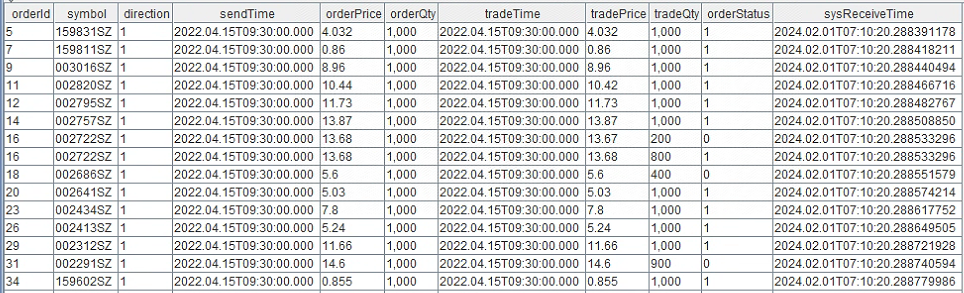
The detailed trade results are shown in the table below:
6 Order Matching Based on Level 2 Tick-by-Tick Data
The order matching simulator takes order instructions and market data as inputs. When the market data consists of Level 2 tick-by-tick data, the simulator matches user orders in accordance with exchange trading rules, following price-time priority.
Using the market order book at 2022.04.14T09:35:00.040 as a reference, the following examples describe how user orders are matched under different scenarios according to price-time priority.
| bidQty | bidPrice | askPrice | askQty |
|---|---|---|---|
| 2,000 | 15.81 | 16.45 | 2,000 |
| 4,000 | 15.80 | 16.65 | 4,000 |
| 2,000 | 15.56 | 16.67 | 8,000 |
| 2,000 | 15.50 | 16.80 | 2,000 |
| 2,000 | 15.25 | 16.85 | 2,000 |
| 4,000 | 15.00 | 16.90 | 2,000 |
| 1,000 | 14.80 | 17.10 | 4,000 |
| 2,000 | 14.75 | 17.15 | 4,000 |
| 1,281,000 | 14.61 | 17.25 | 2,000 |
| 2,000 | 14.35 | 17.45 | 2,000 |
-
Sell 1,000 shares at a limit price of 16.45
At 2022.04.14T09:35:00.040, the best bid was 15.81. Because the price of the order to sell 1,000 shares at a limit price of 16.45 was higher than the best bid of 15.81, the order could not be executed at that time. Looking further at the best ask, its price was 16.45 with a quantity of 2,000 shares. Therefore, the user's order at 16.45 would be queued behind the 2,000 shares at the best ask and would wait to be filled only after those shares were fully executed.
appendMsg(engine, (`000001, `XSHE, 2022.04.14T09:35:00.050, 0, 2, 16.45, 2500, 901, 901, 1, 34) ,1)
select * from tradeOutputTable
The order matching simulator can receive market data and user orders through the
appendMsg (engine,msgBody,msgId)
interface.
msgId=1
indicates market data, and
msgId=2
indicates a user order.
At 2022.04.14T09:35:00.050, a market buy order with a price of 16.45 and a quantity of 2,500 entered the book. Checking tradeQty shows that 500 shares of the user order were filled, and the order status (OrderStatus) was 0, indicating that it was not fully executed.

If a market buy order with a quantity of 500 arrives at 2022.04.14T09:35:00.070, the remaining portion of the user's order will be filled at that time.

See the appendix for the script above.
7 Performance Testing of Order Matching Based on Level 2 Tick-by-Tick Data
When using the order matching simulator, you need to send market data to the engine in a loop. Because tick-by-tick data can be extremely large, you may implement the integration in C++ to achieve higher performance.
7.1 Using the Order Matching Simulator in a C++ Environment
This section explains how to develop a DolphinDB plugin in C++ and call the order matching simulator interfaces via the plugin. The example plugin used in this section is a TWAP (Time-Weighted Average Price) algorithmic trading plugin. The complete plugin code is provided in the appendix.
Before developing a plugin, you should first study the
Plugin Development
to understand the basic concepts and workflow of plugin development. For example, in the TWAP algorithmic trading plugin, the order matching simulator function interface can be obtained through the
getFunctionDef
method. This method returns a function pointer, which can then be invoked via
createEngineFunc->call(heap_, args)
. The following is a code example:
FunctionDefSP createEngineFunc = heap_->currentSession()->getFunctionDef("MatchingEngineSimulator::createMatchEngine");
vector<ConstantSP> args = {...}
auto engine = createEngineFunc->call(heap_, args);
7.2 TWAP Algorithmic Trading Plugin
We have implemented a sample plugin for TWAP algorithmic trading, which fully covers the following workflow:
-
Iterate through the input table row by row. This table is generated from the replay of tick-by-tick order and trade data, which is stored in BLOB format.
-
Send the parsed market data to the order matching simulator.
-
When the timestamp in the market data reaches the strategy trigger time, execute the algorithmic trading strategy.
TWAP Algorithmic Trading Strategy
The trading sessions are from 10:00 to 11:30 and from 13:00 to 14:30. The strategy is triggered once per minute and performs the following two steps:
-
Cancel any unfilled orders from the previous minute.
-
Place one buy order of 2,000 shares for each stock.
7.2.1 How to Use the Plugin
-
Load the plugin.
loadPlugin("<path>/MatchEngineTest.txt")This algorithmic trading plugin is named MatchEngineTest, and its txt file is located in the bin directory of the plugin source code.
-
Plugin interface
MatchEngineTest::runTestTickData(messageTable, stockList, engineConfig)messageTable contains the data produced after replaying market data (tick-by-tick orders and tick-by-tick trades).
stockList is the list of stocks for which the user places orders.
engineConfig is a dictionary with three configurable parameters. engineConfig[“engineName“] specifies the name of this test and is also used as the name when creating the order matching simulator. When creating multiple order matching simulators, the engine names must be unique. engineConfig[“market“] specifies the exchange to use: “XSHG” (Shanghai Stock Exchange) or “XSHE”. engineConfig[“hasSnapshotOutput“] has the same meaning as the “outputOrderBook” parameter in the order matching simulator and indicates whether to output the order book.
-
Input and Output Description
The column names and corresponding types of the input table messageTable are as follows:
colName = `msgTime`msgType`msgBody`sourceType`seqNum
colType =  [TIMESTAMP, SYMBOL, BLOB, INT, INT]
msgType can take the values entrust, trade, and snapshot, which represent tick-by-tick orders, tick-by-tick trades, and snapshot data, respectively. Inside the plugin, the BLOB-format data in messageTable is parsed. In this plugin, the data source for algorithmic trading uses only tick-by-tick data. The schema of the tick-by-tick order and trade data is tickSchema, which is specified in the C++ code as follows:
TableSP tickSchema = Util::createTable({"symbol", "symbolSource", "TradeTime", "sourceType", "orderType", "price", "qty", "buyNo", "sellNo", "BSFlag", "seqNum"}, \
            {DT_SYMBOL, DT_SYMBOL, DT_TIMESTAMP, DT_INT, DT_INT, DT_DOUBLE, DT_INT, DT_INT, DT_INT, DT_INT, DT_INT}, 0, 0);
If the algorithmic trading logic needs to use snapshot data, the input data source must include snapshot data. The snapshot table schema is defined in the C++ code as follows:
TableSP snapshotSchema = Util::createTable({"SecurityID", "TradeTime", "LastPrice", "BidPrice", "OfferPrice", "BidOrderQty", "OfferOrderQty", "TotalValueTrade", "TotalVolumeTrade", "seqNum"}, \
            {DT_SYMBOL, DT_TIMESTAMP, DT_DOUBLE, DATA_TYPE(ARRAY_TYPE_BASE + DT_DOUBLE), DATA_TYPE(ARRAY_TYPE_BASE + DT_DOUBLE), DATA_TYPE(ARRAY_TYPE_BASE + DT_INT), \
            DATA_TYPE(ARRAY_TYPE_BASE + DT_INT), DT_DOUBLE, DT_INT, DT_INT}, 0, 0);
In the plugin implementation, the two result tables output by the order matching simulator, tradeOutputTable and snapshotOutputTable, are saved as shared tables. You can query these two tables to check the order matching simulation results.
// // Output results
vector<string> arg0 = {"tmp_tradeOutputTable"};
vector<ConstantSP> arg1 = {tradeOutputTable};
heap_->currentSession()->run(arg0, arg1);
runScript("share tmp_tradeOutputTable as "+ testName_ + "_tradeOutputTable");
arg0 = {"tmp_snapshotOutputTable"};
arg1 = {snapshotOutputTable};
heap_->currentSession()->run(arg0, arg1);
runScript("share tmp_snapshotOutputTable as "+ testName_ + "_snapshotOutputTable");
When algorithmic trading is executed in multiple threads by stock, each thread has its own tradeOutputTable and snapshotOutputTable. To check stock execution results, you need to aggregate the result tables from all threads before outputting them.
tradeResult = table(100:0, MatchEngineTest1_tradeOutputTable.schema().colDefs.name, MatchEngineTest1_tradeOutputTable.schema().colDefs.typeString)
for (i in 1..thread_num) {
    tradeResult.append!(objByName("MatchEngineTest"+i+"_tradeOutputTable"))
}
// Check the total executed volume of submitted user orders
select Symbol, sum(VolumeTraded) from tradeResult where OrderStatus != 3 and OrderStatus != 2 group by Symbol order by Symbol
7.2.2 Overall Execution Flow
This section describes the overall execution flow of the code, starting from the plugin entry point. The complete C++ code is provided in the appendix.
-
Plugin interfaces
Each call to
runTestTickData
creates a new
TickDataMatchEngineTest
instance and invokes its
runTestTickData
method.
ConstantSP runTestTickData(Heap *heap, std::vector<ConstantSP> &arguments) {
    TableSP messageStream = arguments[0];
    ConstantSP stockList = arguments[1];
    DictionarySP engineConfig = arguments[2];
    TickDataMatchEngineTest test(heap, engineConfig);
    test.testTickData(messageStream, stockList);
    return new String("done");
}
The constructor of the
TickDataMatchEngineTest
class is defined as follows:
TickDataMatchEngineTest::TickDataMatchEngineTest(Heap * heap, ConstantSP engineConfig): heap_(heap) {
    string name = engine_config->get(new String("engineName"))->getString();
    market_ = engine_config->get(new String("market"))->getString();
    if (market_ == "XSHE") {
        marketOrderType_ = static_cast<int>(UserOrderType::XSHEOppositeBestPrice);
    }
    else {
        marketOrderType_ = static_cast<int>(UserOrderType::XSHGBestFivePricesWithLimit);
    }
    bool hasSnapshotOutput = engine_config->get(new String("hasSnapshotOutput"))->getBool();
    test_name_ = name;
    // Create the order matching simulator
    engine_ = createMatchEngine(name, market_, hasSnapshotOutput);
    ...
}
The
testTickData
function is defined as follows:
bool TickDataMatchEngineTest::testTickData(TableSP messageStream, ConstantSP stockList) {
    ...
    // MsgDeserializer is a parser class for BLOB-format data; tickDeserializer is used to parse tick-by-tick data
    MsgDeserializer tickDeserializer(tickSchema);
    ...
    ConstantSP nowTimestamp = messageCols[0]->get(0);
    ConstantSP lastTimestamp = nowTimestamp;
 for (int i = 0; i < messageStream->size(); ++i) {
        nowTimestamp = messageCols[0]->get(i);
        string data = messageCols[2]->getString(i);
        DataInputStream stream(data.c_str(), data.size());
        if (nowTimestamp->getLong() != lastTimestamp->getLong()) {
            context.timestamp = lastTimestamp;
            TableSP msgTable = tickDeserializer.getTable(); // Market data with the same timestamp is treated as one batch.
            saveQuatationToEngine(msgTable); // Send market data to the engine.
            handleStrategy(context, msgTable); // Execute the algorithmic strategy to generate user orders and send them to the engine.
            tickDeserializer.clear();
            lastTimestamp = nowTimestamp;
        }
        tickDeserializer.deserialize(&stream); // Parse this row and store it in the internal table of the parser class.
    }
    ...
}-
Insert market data and user orders into the engine.
The methods for saving market data and sending user orders are the same as those used in the DolphinDB script. Call the
appendMsg
method to pass data to the order matching simulator.
appendMsgFunc = heap_->currentSession()->getFunctionDef("appendMsg");
...
void TickDataMatchEngineTest::saveQuatationToEngine(ConstantSP data) {
    vector<ConstantSP> args = {engine_, data, new Int(1)};
    appendMsgFunc->call(heap_, args);
}
void TickDataMatchEngineTest::saveOrdersToEngine(ConstantSP data) {
    vector<ConstantSP> args = {engine_, data, new Int(2)};
    appendMsgFunc->call(heap_, args);
}-
Strategy execution
When placing orders, you must first build a user order table. Because an in-memory table is also stored in columnar format, you need to create `VectorSP` columns first and then build the table from those columns. For SZSE data, set market orders to 0 when placing orders; for SSE data, set market orders to 1. For the definition of market order types, see the plugin interface manual. After the table has been created, call the
saveOrdersToEngine
function to send the user orders to the engine.
void TickDataMatchEngineTest::handleStrategy(ContextDict& context, ConstantSP msgTable) {
    // Check whether it is time to trigger the strategy.
    ConstantSP timestampToTrigger = new Timestamp(tradeDate_->getInt() * (long long)86400000 + timeToTrigger_->getInt());
    if (!strategyFlag_ || timestampToTrigger->getLong() > context.timestamp->getLong()) {
        return;
    }
    // Get open orders.
    vector<ConstantSP> args = {engine_};
    TableSP openOrders = getOpenOrdersFunc->call(heap_, args);
    int openOrderSize = openOrders->size();
    if (openOrderSize > 0) {
        // Cancel orders.
        ConstantSP symbols = openOrders->getColumn(2);
        ConstantSP times = createVectorByValue(context.timestamp, openOrderSize);
        ConstantSP ordertypes = createVectorByValue(new Int(static_cast<int>(UserOrderType::CancelOrder)), openOrderSize);
        ConstantSP prices = createVectorByValue(new Double(0.0), openOrderSize);
        ConstantSP qtys = openOrders->getColumn(5);
        ConstantSP directions = createVectorByValue(new Int(1), openOrderSize);
        ConstantSP orderIDs = openOrders->getColumn(0);
        vector<ConstantSP> openOrderList = {symbols, times, ordertypes, prices, qtys, directions, orderIDs};
        TableSP ordertable = Util::createTable({"SecurityID", "time", "orderType", "price", "qty", "direction", "orderID"}, openOrderList);
        saveOrdersToEngine(ordertable);
    }
    // Place a market order for each stock at the best ask price.
    int stockSize = context.stockList->size();
    ConstantSP symbols = Util::createVector(DT_SYMBOL, stockSize);
    ConstantSP times = createVectorByValue(context.timestamp, stockSize);
    ConstantSP ordertypes = createVectorByValue(new Int(marketOrderType_), stockSize);
    ConstantSP prices = createVectorByValue(new Double(100.0), stockSize);
    ConstantSP qtys = createVectorByValue(new Int(2000), stockSize);
    ConstantSP directions = createVectorByValue(new Int(1), stockSize);
    ConstantSP orderIDs = createVectorByValue(new Int(1), stockSize);
    for (int i = 0; i < stockSize; ++i) {
        symbols->set(i, context.stockList->get(i));
    }
    vector<ConstantSP> limitOrderList = {symbols, times, ordertypes, prices, qtys, directions, orderIDs};
    TableSP ordertable = Util::createTable({"SecurityID", "time", "orderType", "price", "qty", "direction", "orderID"}, limitOrderList);
    saveOrdersToEngine(ordertable);
    // Update the next strategy trigger time.
    timeToTrigger_ = new Time(timeToTrigger_->getInt() + 60 * 1000);
    if (timeToTrigger_->getInt() > timeToEnd_->getInt()) {
        if (intervalIdx_ + 1 < int(timeIntervals_.size())) {
            ++intervalIdx_;
            timeToTrigger_ = timeIntervals_[intervalIdx_][0];
            timeToEnd_ = timeIntervals_[intervalIdx_][1];
        }
        else {
            // End of strategy.
            strategyFlag_ = false;
        }
    }
}
7.3 Performance Testing
7.3.1 System Configuration
| Name | Configuration Details |
|---|---|
| Operating System | CentOS 7 64-bit |
| CPU | Intel(R) Xeon(R) Silver 4210R CPU @ 2.40GHz |
| Memory | 512GB |
| DolphinDB | 2.00.10 |
| Order Matching Simulator Plugin | release200.10 |
7.3.2 Test Methodology
This test adopts a multi-threaded approach, where market data is distributed across threads based on the modulo of stock symbols. The overall test consists of two parts: market data replay and simulated order matching. We first use the
replayDS
and
replay
methods to read and replay market data from a DFS table, and then pass the replayed data to the algorithmic trading plugin.
-
Market Data Replay
-
First, set the exchange and obtain the stock symbols to trade. When market is set to sz, symbols stores the stock codes of all securities in the SZSE trade table. When market is set to sh, symbols stores the stock codes of all securities in the SSE trade table.
trade_dfs = loadTable("dfs://TSDB_tradeAndentrust", "trade")
market = "sz"  // market = "sz" or "sh"
if (market == "sz") {
    market_name = "XSHE"
    symbols = exec SecurityID from trade_dfs where SecurityID like "0%" or SecurityID like "3%" group by SecurityID
}
else {
    market_name = "XSHG"
    symbols = exec SecurityID from trade_dfs where SecurityID like "6%" group by SecurityID
}-
Apply modulo partitioning to the stock codes to distribute the data across different threads.
def genSymbolListWithHash(symbolTotal, thread_num) {
    symbol_list = []
    for (i in 0:thread_num) {
        symbol_list.append!([]$STRING)
    }
    for (symb in symbolTotal) {
        idx = int(symb) % thread_num
        tmp_list = symbol_list[idx]
        tmp_list.append!(symb)
        symbol_list[idx] = tmp_list
    }
    return symbol_list
}
thread_num = 20 // Number of threads
symbol_list = genSymbolListWithHash(symbols, thread_num)-
The order and trade tables indicate tick-by-tick order and trade data, respectively. Using the
replayfunction, these two tables are replayed into a single table, with the replayed data is sorted by the time column. In addition, when multiple records share the same timestamp, they can be sorted by specified fields. Because both tables are DFS tables, thereplayDSand replay methods must be used together.
entrust_dfs = loadTable("dfs://TSDB_tradeAndentrust", "entrust")
trade_dfs = loadTable("dfs://TSDB_tradeAndentrust", "trade")
def replayBySymbol(market, marketName, symbolList, entrust, trade, i) {
    if (market == "sz") {
        ds1 = replayDS(sqlObj=<select SecurityID as symbol, marketName as symbolSource, TradeTime, 0 as sourceType,
            iif(OrderType in ["50"], 2, iif(OrderType in ["49"], 1, 3)) as orderType, Price as price, OrderQty as qty, int(ApplSeqNum) as buyNo, int(ApplSeqNum) as sellNo,
            int(string(char(string(side)))) as BSFlag, int(SeqNo) as seqNum from entrust
            where Market = market and date(TradeTime)==2022.04.14 and SecurityID in symbolList>, dateColumn = "TradeTime", timeColumn = "TradeTime")
        ds2 = replayDS(sqlObj=<select SecurityID as symbol, marketName as symbolSource, TradeTime, 1 as sourceType,
            iif(BidApplSeqNum==0|| OfferApplSeqNum==0,1,0) as orderType, TradePrice as price, int(tradeQty as qty), int(BidApplSeqNum) as buyNo, int(OfferApplSeqNum) as sellNo,
            0 as BSFlag, int(ApplSeqNum) as seqNum from trade
            where Market = market and date(TradeTime)==2022.04.14 and SecurityID in symbolList>, dateColumn = "TradeTime", timeColumn = "TradeTime")
    }
    else {
        ds1 = replayDS(sqlObj=<select SecurityID as symbol, marketName as symbolSource, TradeTime, 0 as sourceType,
            iif(OrderType == "A", 2, 10) as orderType, Price as price, OrderQty as qty, int(ApplSeqNum) as buyNo, int(ApplSeqNum) as sellNo,
            iif(Side == "B", 1, 2) as BSFlag, int(SeqNo) as seqNum from entrust
            where Market = market and date(TradeTime)==2022.04.14 and SecurityID in symbolList>, dateColumn = "TradeTime", timeColumn = "TradeTime")
        ds2 = replayDS(sqlObj=<select SecurityID as symbol, marketName as symbolSource, TradeTime, 1 as sourceType,
            0 as orderType, TradePrice as price, int(tradeQty as qty), int(BidApplSeqNum) as buyNo, int(OfferApplSeqNum) as sellNo,
            0 as BSFlag, int(TradeIndex) as seqNum from trade
            where Market = market and date(TradeTime)==2022.04.14 and SecurityID in symbolList>, dateColumn = "TradeTime", timeColumn = "TradeTime")
    }
    inputDict  = dict(["entrust", "trade"], [ds1, ds2])
    colName = `msgTime`msgType`msgBody`sourceType`seqNum
    colType =  [TIMESTAMP, SYMBOL, BLOB, INT, INT]
    messageTemp = table(100:0, colName, colType)
    share(messageTemp, "MatchEngineTest" + i)
 // For SZSE data, records with the same timestamp must be ordered with tick-by-tick orders first, followed by tick-by-tick trades."
 // The `sourceType` of tick-by-tick order records is `0`, and the `sourceType` of tick-by-tick trade records is `1`, so they can be sorted by the `sourceType` field.
    if (market == "sz") {
        replay(inputDict, "MatchEngineTest" + i,`TradeTime,`TradeTime,,,1,`sourceType`seqNum)
    }
 // For SSE data, records must be ordered with tick-by-tick trades first, followed by tick-by-tick orders.
    // For SSE data, `seqNum` is already strictly ordered, so the records can be sorted directly by `seqNum` here.
    else {
        replay(inputDict, "MatchEngineTest" + i,`TradeTime,`TradeTime,,,1,`seqNum)
    }
}
// Calculate the total time required for market data replay.
timer {
    job_list = [] // `job_list` stores the IDs of all submitted jobs.
    for (i in 1..thread_num) {
        job_list.append!(submitJob("TestJob" + i, "", replayBySymbol, market, market_name, symbol_list[i-1], entrust_dfs, trade_dfs, i))
    }
    // The `true` argument to `getJobReturn` indicates that the current thread blocks until the job completes and then returns.
    for (i in 0: thread_num) {
        getJobReturn(job_list[i], true)
    }
}
// The replay results can be stored as disk tables for subsequent testing.
db = database("<path>/" + market + "_messages_" + thread_num + "_part")
for (i in 1..thread_num) {
     saveTable(db, objByName("MatchEngineTest" + i), "MatchEngineTest" + i)
}-
After replaying the market data by stock code, we obtain thread_num shared in-memory tables. Their names are MatchEngineTest followed by a number. For convenience in subsequent testing, you can choose to save the replay results. Because CSV files do not support BLOB data, you can store these tables as disk tables.
-
Order Matching Simulation
-
First, load the order matching simulator plugin and the algorithmic trading plugin.
loadPlugin("<path>/PluginMatchingEngineSimulator.txt")
loadPlugin("<path>/MatchEngineTest.txt")-
Prepare the data and configure the parameters. The number of threads here must match the number used for market data replay. Note that the algorithm testing plugin expects market data fields in the form
`msgTime`msgType`msgBody`sourceType`seqNum. This is the result of replaying the tick-by-tick order and trade tables into a single table.
thread_num = 20
market = "sz"
market_name = "XSHE"
messagesList = [] // Store the market data table for each thread
symbolList = []  // Store the stock symbols for each thread
message_num = 0
for (i in 1..thread_num) {
    // Read the replayed market data table from the disk table and get the stock symbols in the table
    messages = select * from loadTable("<path>/" + market + "_messages_" + thread_num + "_part", "MatchEngineTest"+i)
    symbols = exec distinct left(msgBody, 6) from messages
    message_num += messages.size()
    messagesList.append!(messages)
    symbolList.append!(symbols)
}-
doMatchEngineTestindicates the task to be executed by a single thread. It mainly consists of setting the engine_config parameters to be passed in and calling the algorithm testing plugin interface. The plugin's internal execution process was described in the previous section. Note that the engine_config dictionary must be created inside the function. This is because engine_config is passed to the plugin interface by reference rather than as a copy. If engine_config is created outside the function, modifications in one thread may affect other threads during concurrent execution.
def doMatchEngineTest(messageData, symbolList, engineName, marketName, hasSnapshotOutput) {
    engine_config = dict(string, any)
    engine_config["engineName"] = engineName
    engine_config["market"] = marketName
    engine_config["hasSnapshotOutput"] = hasSnapshotOutput
    MatchEngineTest::runTestTickData(messageData, symbolList, engine_config)
}
ClearAllMatchEngine()
// Calculate the total time for order matching simulation
timer {
    test_job_list = [] // Store the IDs of all test jobs
    hasSnapshotOutput = false
    for (i in 1..thread_num) {
        messages = objByName("MatchEngineTest" + i)
        test_job_list.append!(submitJob("EngineTestJob" + i, "", doMatchEngineTest,
                            messages, symbol_list[i-1], "MatchEngineTest" + i,
                            market_name, hasSnapshotOutput))
    }
    // Wait for all jobs to finish before returning
    for (i in 0: thread_num) {
        getJobReturn(test_job_list[i], true)
    }
}-
After all multithreaded tasks have completed, merge each thread's algorithmic trading results (tradeOutputTable and snapshotOutputTable) and store the merged results in tradeResult and snapshotResult, respectively.
tradeResult = table(100:0, MatchEngineTest1_tradeOutputTable.schema().colDefs.name, MatchEngineTest1_tradeOutputTable.schema().colDefs.typeString)
snapshotResult = table(100:0, MatchEngineTest1_snapshotOutputTable.schema().colDefs.name, MatchEngineTest1_snapshotOutputTable.schema().colDefs.typeString)
for (i in 1..thread_num) {
    tradeResult.append!(objByName("MatchEngineTest"+i+"_tradeOutputTable"))
    snapshotResult.append!(objByName("MatchEngineTest"+i+"_snapshotOutputTable"))
}
// After merging the results into `tradeResult`, delete each thread's `tradeOutputTable` and `snapshotOutputTable`
for (i in 1..thread_num) {
    try {
        undef("MatchEngineTest" + i + "_tradeOutputTable", SHARED)
        undef("MatchEngineTest" + i + "_snapshotOutputTable", SHARED)
    } catch(ex) {print(ex)}
}-
Query the tradeResult table to check the total executed quantity for each stock.
select Symbol, sum(VolumeTraded) from tradeResult where OrderStatus !=2 and OrderStatus != 3 group by Symbol order by Symbol7.3.3 Test Results
The total time for market data replay includes both data loading and replay processing. The simulation time covers BLOB parsing and the computation performed by the matching engine.Both metrics are measured using
timer
.
The following sections show the order matching results for SZSE tick-by-tick data and SSE tick-by-tick data under different test configurations. When partitioning stock symbols, the test script uses a hash-based method: each symbol is assigned to a different thread based on the modulo result. Because the volume of market data varies by stock, execution times may differ across threads. To reduce overall test time, try to keep the amount of market data assigned to each thread roughly balanced.
| Data | Number of Stocks | Market Data Volume (Records) | Number of Threads | Market Data Replay Time (s) | Order Matching Simulation Time (s) |
|---|---|---|---|---|---|
| SZSE Tick-by-Tick Data | 2,611 | 130,291,485 | 2 | 90 | 125 |
| 5 | 47 | 63 | |||
| 10 | 30 | 43 | |||
| 500 | 37,218,476 | 1 | 45 | 62 | |
| SSE Tick-by-Tick Data | 2,069 | 84,095,369 | 2 | 70 | 84 |
| 5 | 32 | 45 | |||
| 10 | 22 | 33 | |||
| 500 | 30,531,252 | 1 | 34 | 55 |
The test results show that the runtime of the order matching simulation is not proportional to the number of threads. This is because simulated order matching is a compute-intensive task. When the thread count becomes too high, adding more threads introduces additional resource contention and scheduling overhead, which increases the overall runtime.
8 Summary
DolphinDB provides an order matching simulator plugin that can simulate the matching of order requests based on snapshot and tick-by-tick market data. It supports settings such as fill ratio and latency. When multiple user orders on the same side are matched simultaneously, executions follow price-time priority. This makes it convenient for users to simulate real trading in high-frequency strategy backtesting and provides important reference value for high-frequency trading strategies. The order matching simulator plugin is developed in C++ and, combined with DolphinDB's distributed data query capabilities, can greatly reduce the overall time required for high-frequency strategy backtesting.
9 FAQ
-
addTrade Fail / cancelTrade Fail
<ERROR>:addTrade Fail symbol = 002871 seq 6517875 buyOrderNo = 6484446 sellOrderNo = 6517874 qty = 100 Can't find order.
<ERROR>:cancelTrade Fail symbol 000776 seq 204618 orderNo 127188 qty = 300 Can't find order.
Description: When constructing synthetic market snapshots, if a tick-by-tick trade cannot be matched with a corresponding order, it indicates that the input market data is incorrect. Possible causes include:
-
The market data is not sorted in the correct order: For the Shenzhen Stock Exchange, when market data has the same timestamp, tick-by-tick orders must be submitted to the engine before the corresponding executions. For the Shanghai Stock Exchange, tick-by-tick orders must be submitted after the corresponding executions. You should inspect the input market data based on the error message to verify whether the buy order (buyOrderNo), sell order (sellOrderNo), and trade record are in the correct input sequence. Note that when sourceType is 0, the record is a buy or sell order; when sourceType is 1, it is a trade record.
-
The market data is incomplete: You may have provided only a portion of the trading day, e.g., data after 10:00. If orders submitted before 10:00 are executed after 10:00, the engine cannot find the corresponding orders for those trades, resulting in this error. Verify that the input market data includes all buy orders, sell orders, and trade records.
-
The wrong exchange was selected when creating the engine: When creating the engine using
MatchingEngineSimulator::createMatchEngine, the input parameter exchange specifies the exchange: "XSHE" for SZSE, "XSHG" for SSE. Because the ordering of orders and trades differs across exchanges, selecting the wrong exchange may trigger this error.
-
Hq Order Time Can not reduce
<ERROR>:...MatchingEngineSimulator::insertMsg(..) => Hq Order Time Can not reduce!Description: The latest market data time inside the engine is later than the input market data time. Possible causes include:
-
The market data is not sorted by time: Market data must be sorted in chronological order.
-
Data in the engine was not cleared: The engine still retains some data whose latest market data time is later than the input market data time.
-
A user order later than the latest market data time was submitted: If the time of an input user order is later than the latest market data time, the engine updates the latest market data time to that user order time. If subsequent market data has a timestamp earlier than that user order time, this ERROR will be reported when the subsequent market data is ingested in.
-
the time of this userOrder is Less than LastOrderTime
<WARNING>:the time of this userOrder is Less than LastOrderTime, it will be set to LastOrderTimeDescription: This log is a WARNING, not an ERROR. It occurs when the timestamp of the input user order is earlier than the latest market timestamp in the engine. Possible causes include:
-
The time column for the user order is incorrectly configured or missing.
-
Market data input and user order generation are performed asynchronously , and the algorithmic strategy may generate user orders with some delay, which is considered normal.
10 Appendix
-
Complete Script File
-
C++ Source File