
DolphinDB Data Access Interface Development
After data is stored in DolphinDB, the database administrator needs to provide users with data access interfaces.
This tutorial describes how to provide users with data access interfaces using permission management and the function view.
In this tutorial, you will learn:
-
Develop data access interfaces in DolphinDB.
-
Access data by calling a function view in DolphinDB.
-
Access data by calling a function view using DolphinDB APIs.
1. Test Environment Preparation
The software environment for this tutorial is as follows:
| Software Name | Version Information |
|---|---|
| DolphinDB | 2.00.10.9 |
| DolphinDB Python API | 3.0.1.0 |
| DolphinDB C++ API | 300.2 |
| DolphinDB Java API | 3.00.2.0 |
| DolphinDB C# API | 3.00.1.1 |
| DolphinDB JavaScript API | 3.0.200 |
Step 1: Deploy the Test Environment
-
Deploy the DolphinDB server standalone: Standalone Deployment and Upgrade.
-
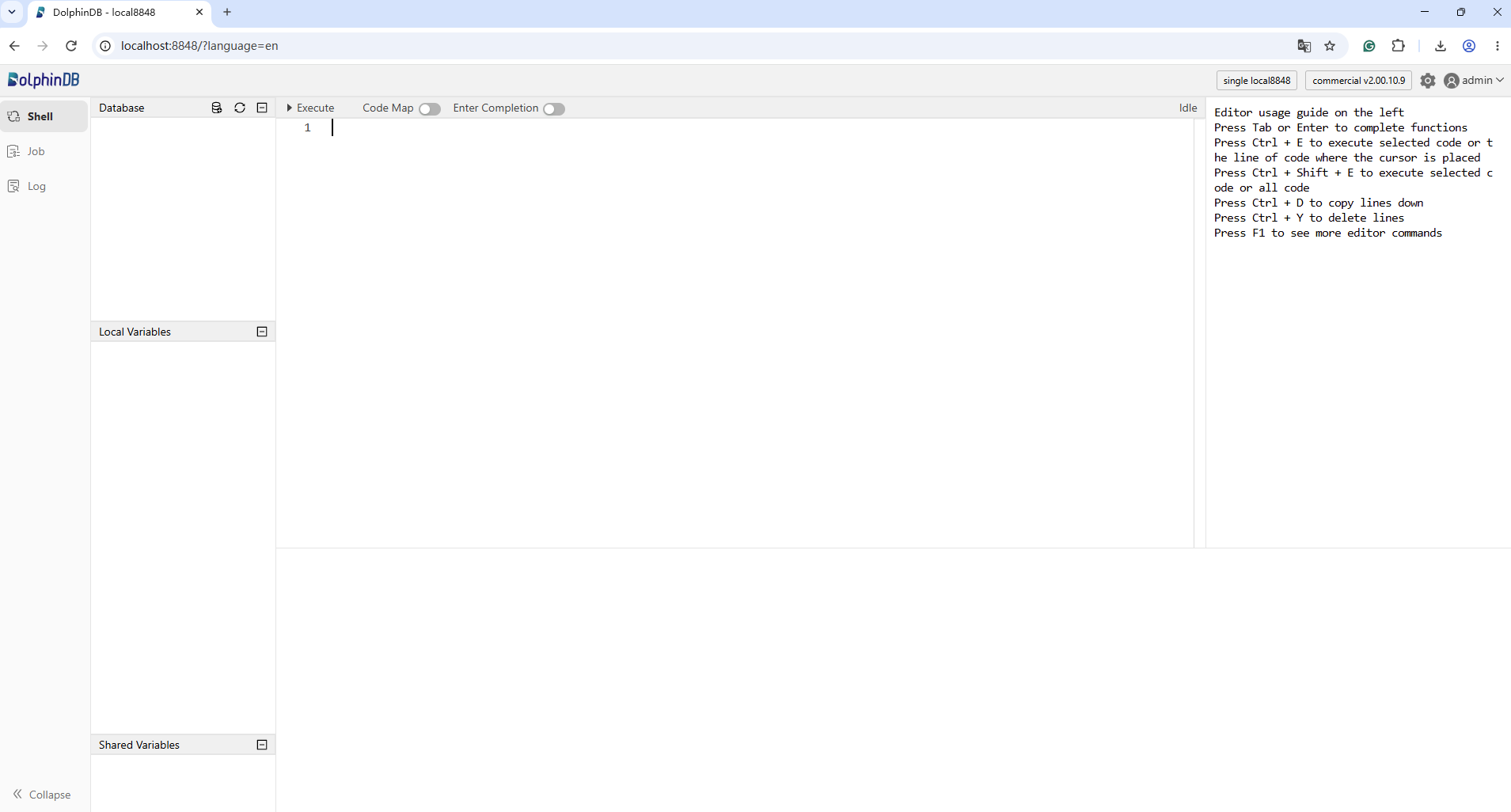
Following the deployment tutorial, open the node's Web interface and log in. The default password for the admin account is 123456.
Step 2: Create a Database and Table for Test
Create a partitioned table used in this tutorial. The test data includes:
-
Minute-level metrics for 10 stocks over 10 years. The metric columns are col1, col2, col3, …, col49, col50.
Paste the following code into the Web interface, select the code you want to execute, and click Execute (shortcut: Ctrl+E):
//Log in
login("admin", "123456")
//Create the database and the partitioned table
dbName = "dfs://stock"
tbName = "factor"
if(existsDatabase(dbName)){
	dropDatabase(dbName)
}
db = database(dbName, VALUE, 2023.01.01..2023.01.30)
colNames = `SecurityID`date`time`col1`col2`col3`col4`col5`col6`col7`col8`col9`col10`col11`col12`col13`col14`col15`col16`col17`col18`col19`col20`col21`col22`col23`col24`col25`col26`col27`col28`col29`col30`col31`col32`col33`col34`col35`col36`col37`col38`col39`col40`col41`col42`col43`col44`col45`col46`col47`col48`col49`col50
colTypes = [SYMBOL, DATE, SECOND, DOUBLE, DOUBLE, DOUBLE, DOUBLE, DOUBLE, DOUBLE, DOUBLE, DOUBLE, DOUBLE, DOUBLE, DOUBLE, DOUBLE, DOUBLE, DOUBLE, DOUBLE, DOUBLE, DOUBLE, DOUBLE, DOUBLE, DOUBLE, DOUBLE, DOUBLE, DOUBLE, DOUBLE, DOUBLE, DOUBLE, DOUBLE, DOUBLE, DOUBLE, DOUBLE, DOUBLE, DOUBLE, DOUBLE, DOUBLE, DOUBLE, DOUBLE, DOUBLE, DOUBLE, DOUBLE, DOUBLE, DOUBLE, DOUBLE, DOUBLE, DOUBLE, DOUBLE, DOUBLE, DOUBLE, DOUBLE, DOUBLE, DOUBLE]
schema = table(1:0, colNames, colTypes)
db.createPartitionedTable(table=schema, tableName=tbName, partitionColumns='date')
//Mock data
n = 1000000
SecurityID = rand(`000001`000002`000003`000004`000005`000006`000007`000008`000009`000010, n)
date = rand(2015.01.01..2024.12.31, n)
time = 09:30:00 + rand(331, n) * 60
factor = rand(10.0, n:50)
factor.rename!(`col1`col2`col3`col4`col5`col6`col7`col8`col9`col10`col11`col12`col13`col14`col15`col16`col17`col18`col19`col20`col21`col22`col23`col24`col25`col26`col27`col28`col29`col30`col31`col32`col33`col34`col35`col36`col37`col38`col39`col40`col41`col42`col43`col44`col45`col46`col47`col48`col49`col50)
t = table(SecurityID, date, time, factor)
//Save to the partitioned table
loadTable("dfs://stock", "factor").append!(t)
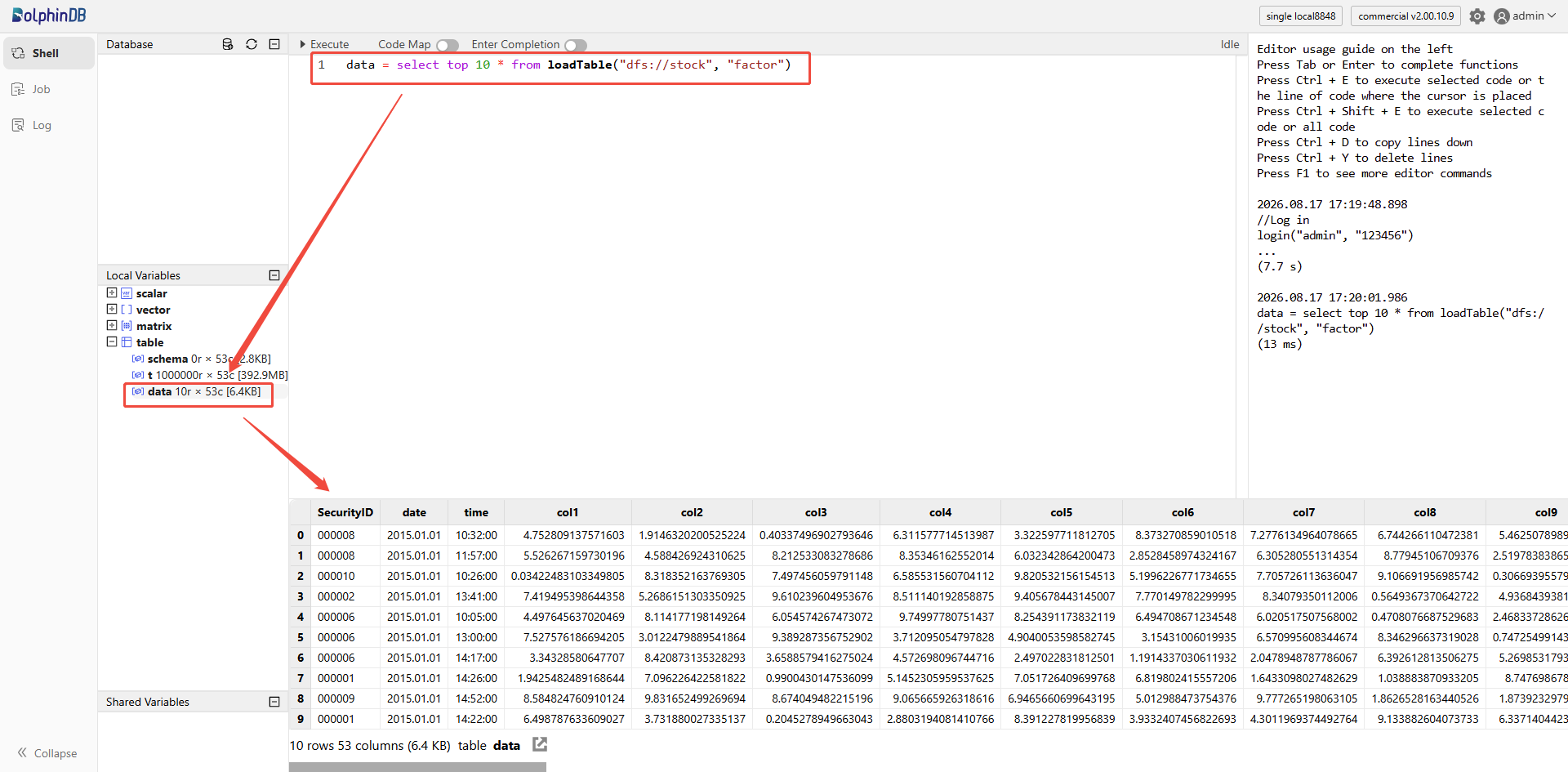
After successful import, run the following code to query the first 10 rows and load them into memory for review:
data = select top 10 * from loadTable("dfs://stock", "factor")Output:
Step 3: Create Test Users
-
Create users testUser1 and testUser2.
-
Create the user group testGroup1 and add users testUser1 and testUser2 to this group.
login("admin", "123456")
createUser("testUser1", "123456",, false)
createUser("testUser2", "123456",, false)
createGroup("testGroup1", `testUser1`testUser2)
2. Develop Data Access Interfaces
This tutorial provides the following examples for developing data access interfaces:
-
Full-table access interface
-
Row-level access interface
-
Column-level access interface
-
Row-and-column-level access interface
2.1 Full-Table Access Interface
Example 1: Users can access all data in the table.
login("admin", "123456")
def query(startDate, endDate, cols="*", security=NULL) {
	whereConditions = [<date between startDate:endDate>]
	if (typestr(security) <> "VOID") {
		whereConditions.append!(<SecurityID in security>)
	}
	return eval(sql(select=sqlCol(cols), from=loadTable("dfs://stock", "factor"), where=whereConditions))
}
addFunctionView(query)
grant("testGroup1", VIEW_EXEC, "query")
Parameters
-
startDate: Start date
-
endDate: End date
-
cols: Column names; defaults to all columns
-
security: Security code; defaults to all security codes
2.2 Row-Level Access Interface
Example 2: Users can access only the most recent year of data.
login("admin", "123456")
def queryRecentYear(startDate=NULL, endDate=NULL, cols="*", security=NULL) {
	start = temporalAdd(date(now()), -1, "y")
	end = date(now())
	if (startDate == NULL) { date0 = start }
	else if (startDate < start) { throw("Not granted to read data before " + start) }
	else { date0 = startDate }
	if (endDate == NULL) { date1 = end }
	else if (endDate > end) { throw("Not granted to read data after " + end) }
	else { date1 = endDate }
	whereConditions = [<date between date0:date1>]
	if (typestr(security) <> "VOID") {
		whereConditions.append!(<SecurityID in security>)
	}
	return eval(sql(select=sqlCol(cols), from=loadTable("dfs://stock", "factor"), where=whereConditions))
}
addFunctionView(queryRecentYear)
grant("testGroup1", VIEW_EXEC, "queryRecentYear")
Parameters
-
startDate: Start date; defaults to one year ago
-
endDate: End date; defaults to today
-
cols: Column names; defaults to all columns
-
security: Security code; defaults to all security codes
2.3 Column-Level Access Interface
Example 3: Users can access only the first 10 columns of data in the table.
login("admin", "123456")
def queryFirst10Col(startDate, endDate, cols=NULL, security=NULL) {
	grantedCols = loadTable("dfs://stock", "factor").schema()['colDefs']['name'][:10]
	notGranted = not(cols in grantedCols)
	if (typestr(cols) == "VOID") { col = grantedCols }
	else if (sum(notGranted) > 0) {	throw("Not granted to read columns " + toStdJson(distinct(cols[notGranted]))) }
	else { col = cols }
	whereConditions = [<date between startDate:endDate>]
	if (typestr(security) <> "VOID") {
		whereConditions.append!(<SecurityID in security>)
	}
	return eval(sql(select=sqlCol(col), from=loadTable("dfs://stock", "factor"), where=whereConditions))
}
addFunctionView(queryFirst10Col)
grant("testGroup1", VIEW_EXEC, "queryFirst10Col")
Parameters
-
startDate: Start date
-
endDate: End date
-
cols: Column names; defaults to all columns you are allowed to access
-
security: Security code; defaults to all security codes
2.4 Row-and-Column-Level Access Interface
Example 4: Users can access only certain columns of data from the year 2020 onwards.
login("admin", "123456")
def queryCond(startDate, endDate, cols=NULL, security=NULL) {
	grantedCols = `SecurityID`date`time`col46`col47`col48`col49`col50
	notGranted = not(cols in grantedCols)
	if (typestr(cols) == "VOID") { col = grantedCols }
	else if (sum(notGranted) > 0) {	throw("Not granted to read columns " + toStdJson(distinct(cols[notGranted]))) }
	else { col = cols }
	if (startDate < 2020.01.01) {
		throw("Not granted to read data before 2020")
	}
	if (startDate < temporalAdd(endDate, -1, "y")) {
		throw("Time duration exceeds 1 year. Please change the dates.")
	}
	whereConditions = [<date between startDate:endDate>]
	if (typestr(security) <> "VOID") {
		whereConditions.append!(<SecurityID in security>)
	}
	return eval(sql(select=sqlCol(col), from=loadTable("dfs://stock", "factor"), where=whereConditions))
}
addFunctionView(queryCond)
grant("testGroup1", VIEW_EXEC, "queryCond")
Parameters
-
startDate & endDate: Start date and end date; the interval must not exceed one year
-
cols: Column names; defaults to all columns you are allowed to access
-
security: Security code; defaults to all security codes
3. Access Data in DolphinDB IDEs
DolphinDB provides a variety of IDEs for accessing data from the DolphinDB server, including the Web interface, VS Code extension, and GUI client.
3.1 Introduction to DolphinDB IDEs
This section introduces how to install and use DolphinDB IDEs. See GUI Clients for details.
3.1.1 Web Interface
Enter the DolphinDB server's IP address and deployment port number (e.g., 127.0.0.1:8848) in a browser to access the Web Interface.
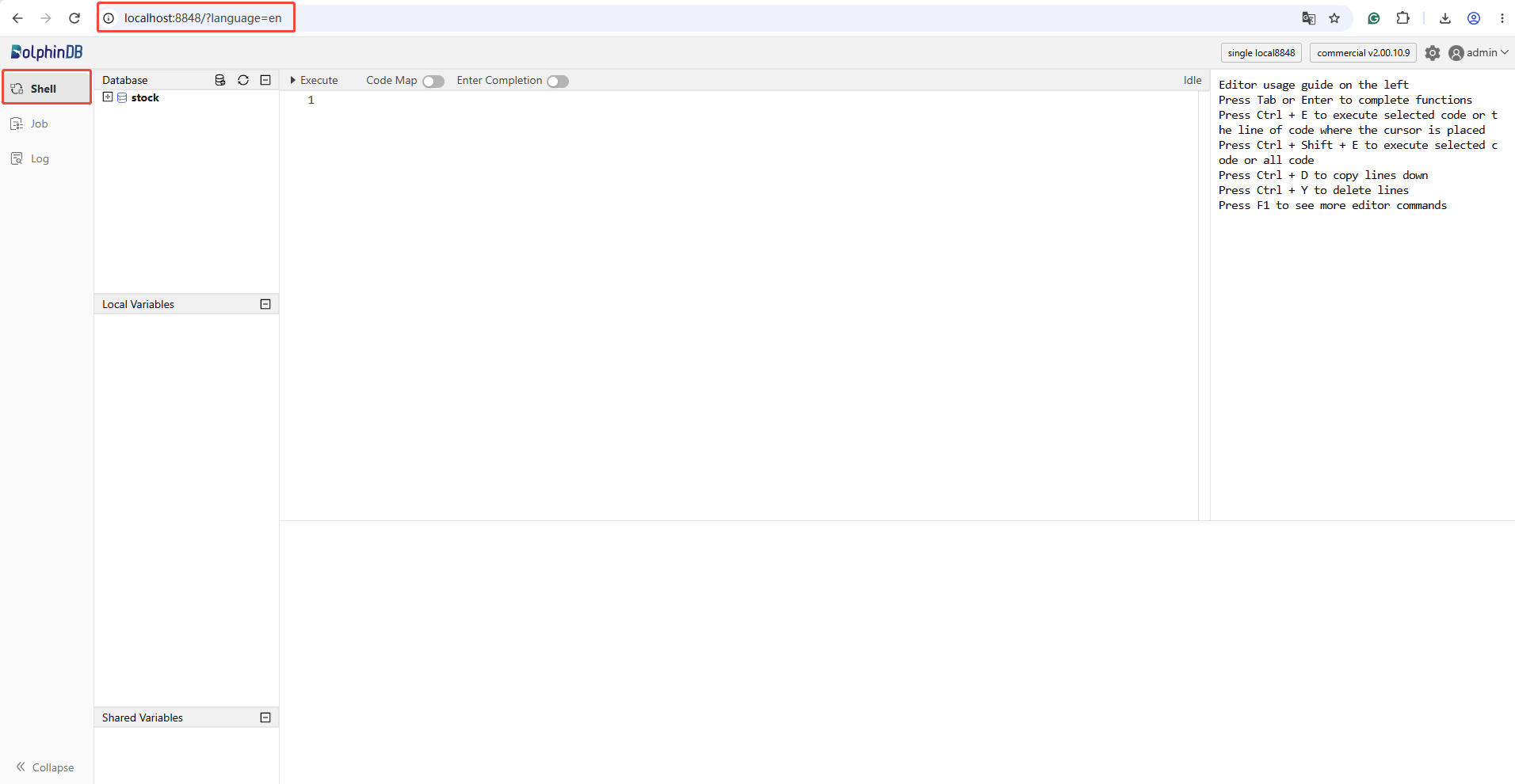
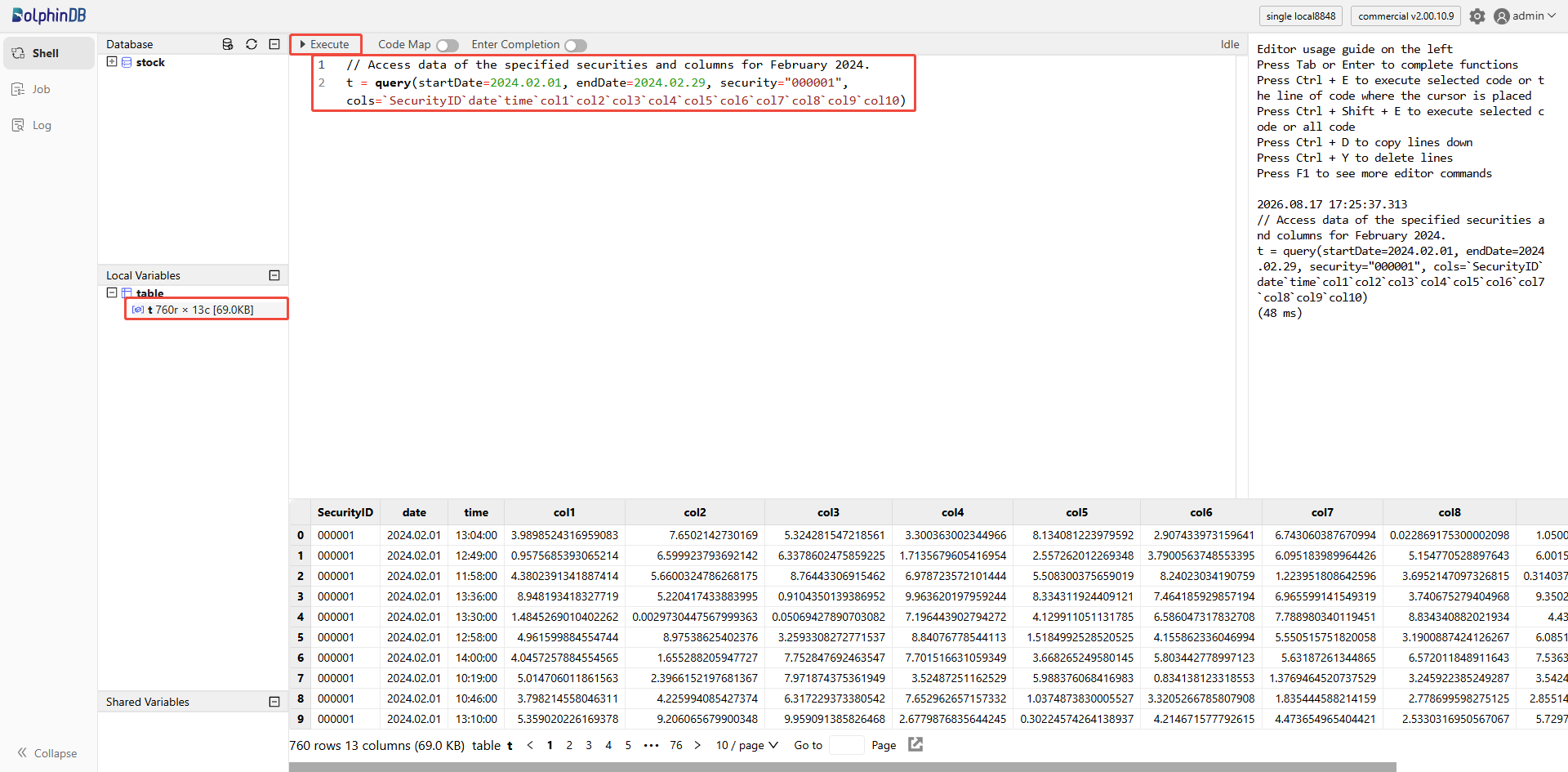
After logging in, you can enter code in the editor and access data using the data access interfaces. In the editor, you can execute code by clicking the Execute button in the upper-left corner or using the shortcut Ctrl+E. Select part or all of the code, then click the Execute button or press Ctrl+E to run it. In-memory data can be viewed in Local Variables.
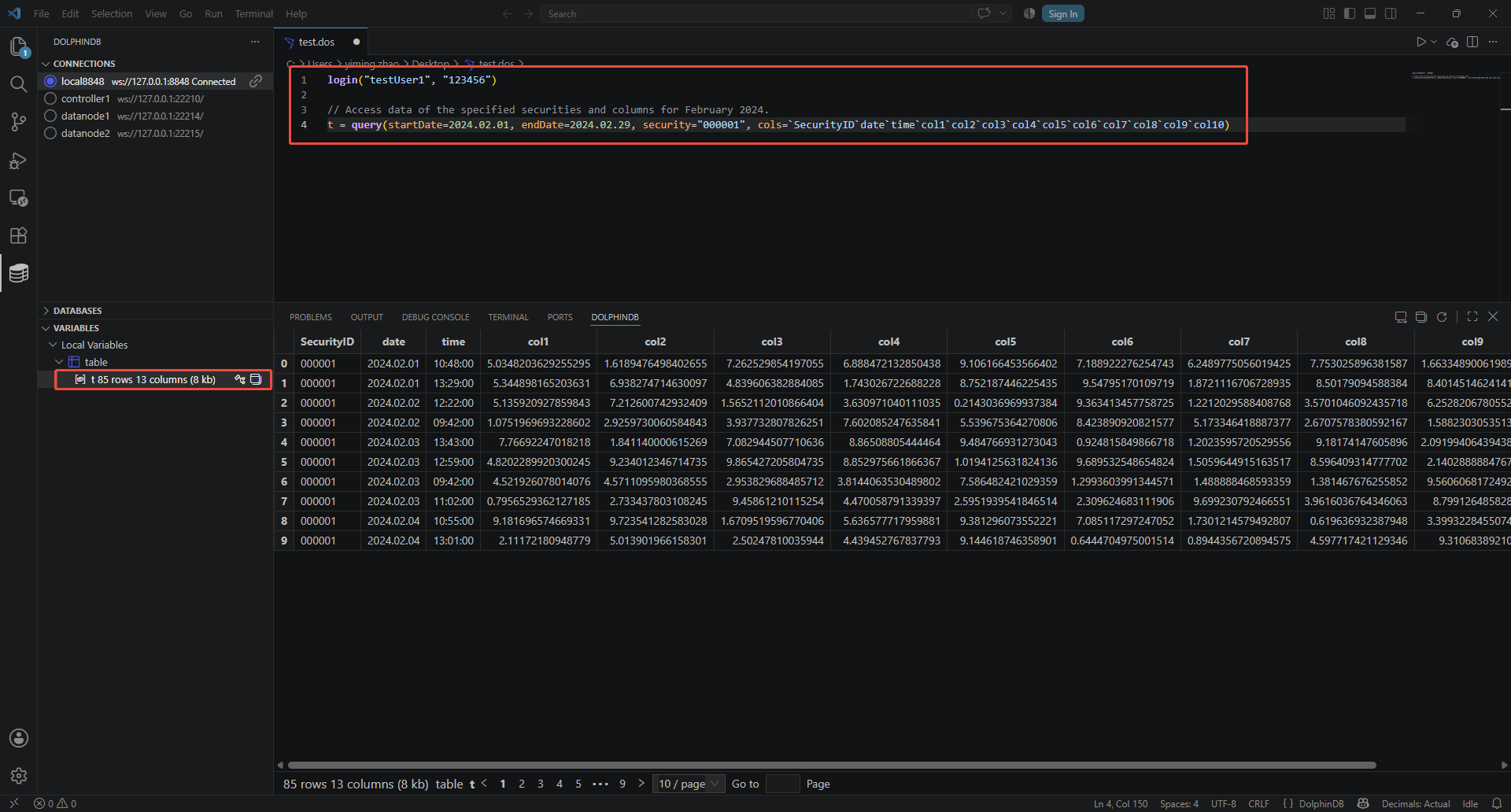
3.1.2 VS Code Extension
DolphinDB has developed a VS Code extension for DolphinDB Scripting Language. This extension enables you to write and execute scripts to operate DolphinDB databases or view data using VS Code.
Refer to the Visual Studio Code Extension to download and install VS Code, connect to a DolphinDB server, and create a script file.
In the script file, enter code and access data using the data access interfaces. Select part or all of the code and press Ctrl+E to execute it. In-memory data can be viewed in VARIABLES.
3.1.3 DolphinDB GUI
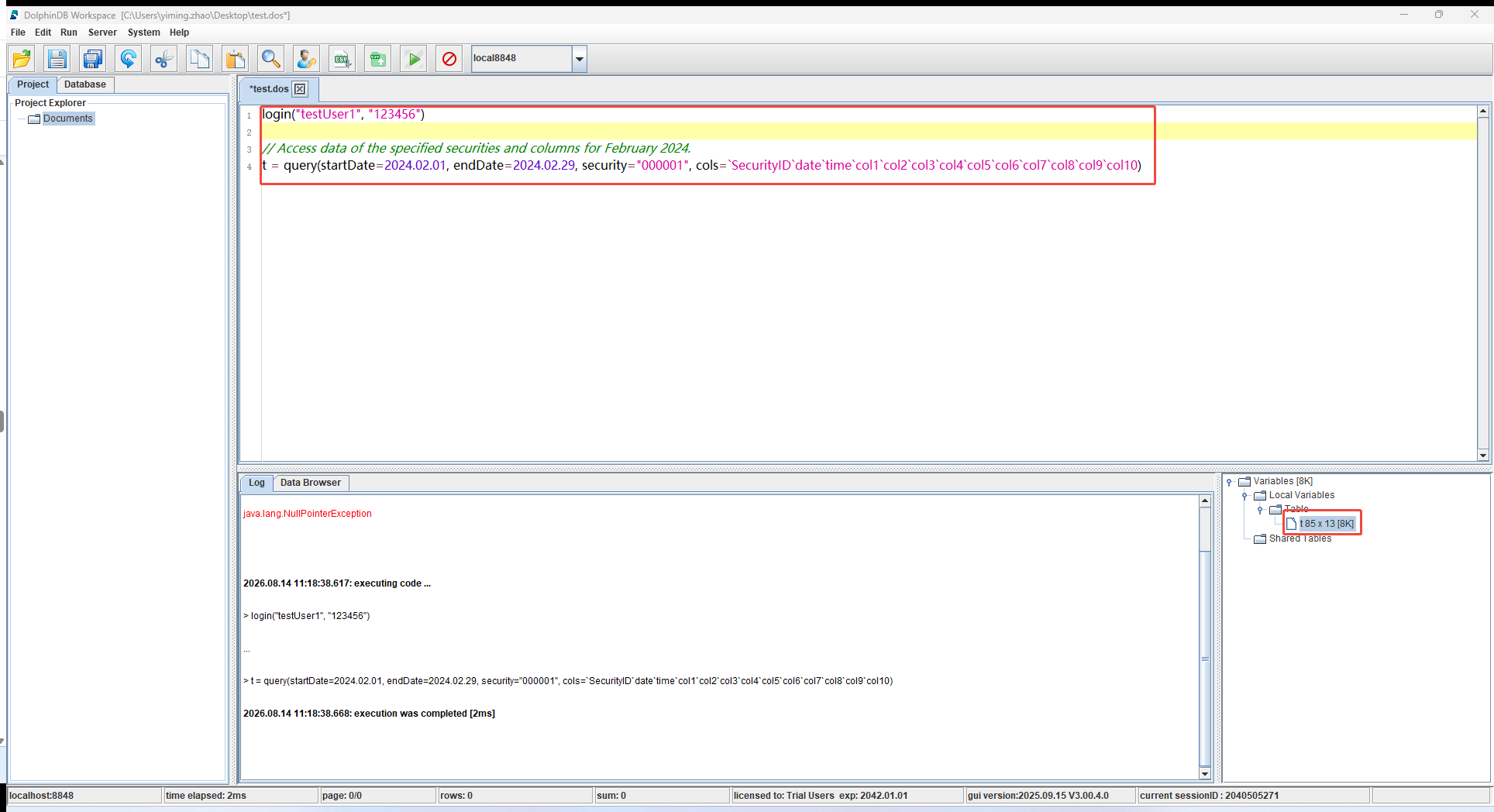
The DolphinDB GUI is a graphical programming and data browsing interface based on Java that works on any operating system supporting Java, such as Windows, Linux, and Mac. This client is fast, full-featured, and user‑friendly. It is suitable for managing and developing DolphinDB scripts and modules, interacting with databases, and viewing execution results.
Refer to Getting Started to install and launch the GUI client, connect to a DolphinDB server, and create a script file.
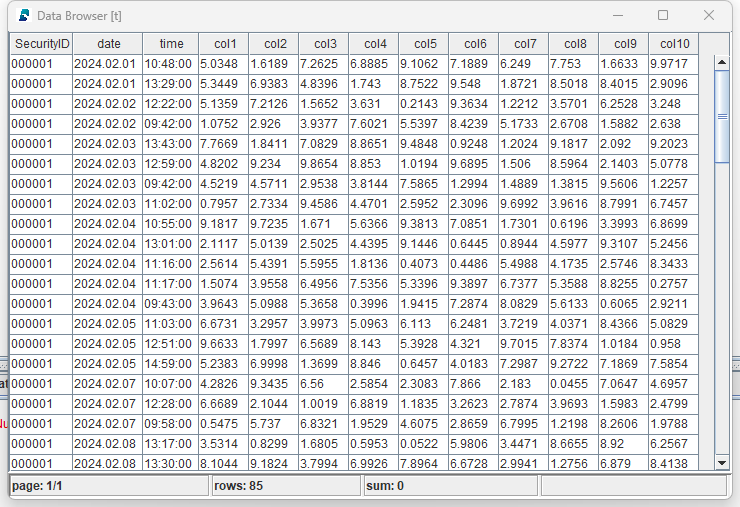
In the script file, enter code and access data using the data access interfaces. Select part or all of the code and press Ctrl+E to execute it. In-memory data can be viewed in the Variables.
3.2 Access Data in DolphinDB Server
-
Log in to the DolphinDB server using the testUser1 account.
login("testUser1", "123456")-
Access data using the full-table access interface.
// Access all table data.
t = query(startDate=2015.01.01, endDate=2024.12.31)

// Access data of the specified securities and columns for February 2024.
t = query(startDate=2024.02.01, endDate=2024.02.29, security="000001", cols=`SecurityID`date`time`col1`col2`col3`col4`col5`col6`col7`col8`col9`col10)-
Access data using the row-level access interface.
// Access all data from the last year.
t = queryRecentYear()

// Access data from a specified start date and specified columns.
t = queryRecentYear(startDate=2023.07.10, cols=`SecurityID`date`time`col2`col3)
If the query time range exceeds the last year, it throws the following error:
t = queryRecentYear(2023.07.01, , ["SecurityID","date","time","col2","col3"]) => queryRecentYear: throw "Not granted to read data before " + start => Not granted to read data before 2023.07.05-
Access data using the column-level access interface.
// Access all accessible columns for the specified securities in 2023.
t = queryFirst10Col(startDate=2023.01.01, endDate=2023.12.31, security=`000008`000009`000010)

// Access data of the specified columns for December 2022.
t = queryFirst10Col(startDate=2022.12.01, endDate=2022.12.31, cols=`SecurityID`date`time`col4`col5`col6)-
Access data using the row-and-column-level access interface.
// Access all accessible columns for January 2021.
t = queryCond(startDate=2021.01.01, endDate=2021.01.31)

// Access data of the specified columns in 2021.
t = queryCond(startDate=2021.01.01, endDate=2021.12.31, cols=`SecurityID`date`time`col47`col48`col49)
4. Access Data via the DolphinDB API
DolphinDB provides a rich set of APIs, including Python, C++, Java, C#, Go, R, JavaScript. For details, refer to API & Connector. This section uses the Python API to demonstrate how to wrap the native API interfaces to create a convenient data access interface.
4.1 Introduction to the DolphinDB Python API
dolphindb is the official Python API for DolphinDB. It connects the DolphinDB server and Python client, enabling bidirectional data transfer and script execution. The DolphinDB API allows seamless data transfer and script execution between the DolphinDB server and Python client. Using the DolphinDB API, you can leverage DolphinDB's powerful computing and storage capabilities to manipulate, analyze and model data within a Python environment.
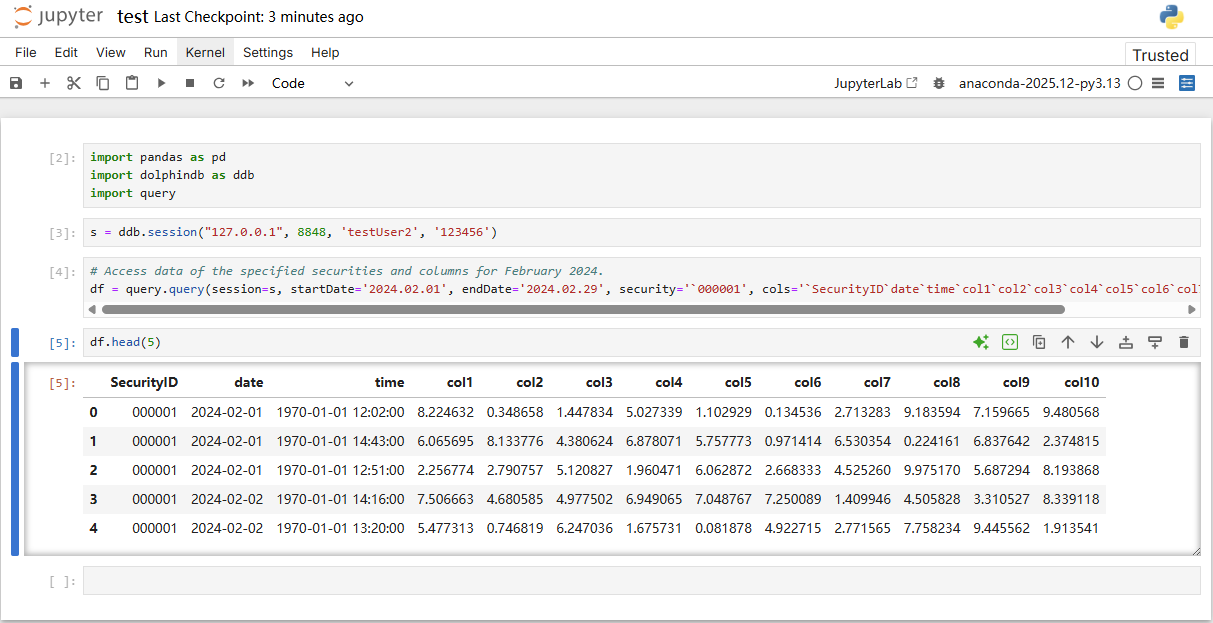
Follow Installing DolphinDB Python API to install the Python API. Create a new *.ipynb* file in Jupyter Notebook to view data with the Python API.
4.2 Data Access Examples using Native Interfaces
dolphindb provides the session() and run() interfaces for quick interaction between Python and the DolphinDB server. This allows users to call the data access interfaces wrapped as function views in Chapter 2. The examples below are implemented using the native Python API interfaces.
-
Create a session using the Python API and log in as user testUser2.
import pandas as pd import dolphindb as ddb #Create a session and log in. s = ddb.session("127.0.0.1", 8848, 'testUser2', '123456') -
Access data using the full-table access interface.
#Access all table data. startDate = np.datetime64("2015-01-01", "D") endDate = np.datetime64("2024-12-31", "D") cols = "*" df = s.run("query", startDate, endDate, cols) -
Access data using the row-level access interface.
#Access all data from the last year. startDate = np.datetime64("2024-07-01", "D") df = s.run("queryRecentYear", startDate) -
Access data using the column-level access interface.
# Access all accessible columns for the specified securities in 2023. startDate = np.datetime64("2023-01-01", "D") endDate = np.datetime64("2023-12-31", "D") cols = None security = np.array(['000008', '000009', '000010']) df = s.run("queryFirst10Col", startDate, endDate, cols, security) -
Access data using the row-and-column-level access interface.
#Access data of the specified columns in 2021.

startDate = np.datetime64("2021-01-01", "D")
endDate = np.datetime64("2021-12-31", "D")
cols = np.array(['SecurityID', 'date', 'time', 'col47', 'col48', 'col49'])
df = s.run("queryCond", startDate, endDate, cols)
4.3 Example of a Wrapped Python API Data Access Interface
To make data access interfaces easier to use, you can further wrap the native interfaces provided by the Python API. This tutorial provides simple examples to illustrate wrapping approaches, helping you improve development efficiency.
-
The query.py file contains a simple example of wrapping the native interfaces. It must be placed in the same directory as your query code (*.py or *.ipynb files) for importing.
#!/usr/bin/env python
# coding: utf-8

def query(session, startDate, endDate, cols='"*"', security='NULL'):
 script = 'query({}, {}, {}, {})'.format(startDate, endDate, cols, security)
 return session.run(script)

def queryRecentYear(session, startDate='NULL', endDate='NULL', cols='"*"', security='NULL'):
 script = 'queryRecentYear({}, {}, {}, {})'.format(startDate, endDate, cols, security)
 return session.run(script)

def queryFirst10Col(session, startDate, endDate, cols='NULL', security='NULL'):
 script = 'queryFirst10Col({}, {}, {}, {})'.format(startDate, endDate, cols, security)
 return session.run(script)

def queryCond(session, startDate, endDate, cols='NULL', security='NULL'):
 script = 'queryCond({}, {}, {}, {})'.format(startDate, endDate, cols, security)
 return session.run(script)
Next, we provide examples of data access interfaces that are wrapped using the Python client.
-
Create a session using the Python API and log in as user testUser2.
import pandas as pd import dolphindb as ddb import query # Create a session and log in. s = ddb.session("127.0.0.1", 8848, 'testUser2', '123456') -
Access data using the full-table access interface.
# Access all table data. df = query.query(session=s, startDate='2015.01.01', endDate='2024.12.31') # Access data of the specified securities and columns for February 2024. df = query.query(session=s, startDate='2024.02.01', endDate='2024.02.29', security='`000001', cols='`SecurityID`date`time`col1`col2`col3`col4`col5`col6`col7`col8`col9`col10') -
Access data using the row-level access interface.
# Access all data from the last year. df = query.queryRecentYear(session=s) # Access data from a specified start date and specified columns. df = query.queryRecentYear(session=s, startDate='2024.07.01', cols='`SecurityID`date`time`col2`col3') -
Access data using the column-level access interface.
# Access all accessible columns for the specified securities in 2023. df = query.queryFirst10Col(session=s, startDate='2023.01.01', endDate='2023.12.31', security='`000008`000009`000010') # Access data of the specified columns for December 2022. df = query.queryFirst10Col(session=s, startDate='2022.12.01', endDate='2022.12.31', cols='`SecurityID`date`time`col4`col5`col6') -
Access data using the row-and-column-level access interface.
# Access all accessible columns for January 2021.
df = query.queryCond(session=s, startDate='2021.01.01', endDate='2021.01.31')

# Access data of the specified columns in 2021.
df = query.queryCond(session=s, startDate='2021.01.01', endDate='2021.12.31', cols='`SecurityID`date`time`col47`col48`col49')
4.4 Examples of Data Access Interfaces using Other APIs
To help you quickly extend the design of the data access interfaces, this tutorial provides examples of several common APIs. These are called via the standard RPC interface run(funcName, args...). You can wrap the standard interfaces for a more convenient data access interface.
-
C++ API
# Create a session and log in. DBConnection conn; conn.connect("127.0.0.1", 8848, "testUser2", "123456"); # Access all table data. ConstantSP startDate = Util::createDate(2015, 1, 1); ConstantSP endDate = Util::createDate(2024, 12, 31); ConstantSP cols = Util::createString("*"); vector<ConstantSP> funcArgs = {startDate, endDate, cols}; auto tb = conn.run("query", funcArgs); -
Java API
//Create a session and log in. DBConnection conn= new DBConnection(); conn.connect("127.0.0.1", 8848, "testUser2", "123456"); //Access all table data. BasicDate startDate = new BasicDate(LocalDate.of(2015,1,1)); BasicDate endDate = new BasicDate(LocalDate.of(2024,12,31)); BasicString cols = new BasicString("*"); List<Entity> funcArgs = Arrays.asList(startDate, endDate, cols); BasicTable tb = (BasicTable)conn.run("query", funcArgs); -
C# API
// Create a session and log in. DBConnection conn = new DBConnection(); conn.connect("127.0.0.1", 8848, "testUser2", "123456"); // Access all table data. BasicDate startDate = new BasicDate(new DateTime(2015, 1, 1)); BasicDate endDate = new BasicDate(new DateTime(2024, 12, 31)); BasicString cols = new BasicString("*"); List<IEntity> funcArgs = new List<IEntity> { startDate, endDate, cols }; BasicTable tb = (BasicTable)conn.run("query", funcArgs); -
JavaScript API
//Create a session and log in.
let ddb = new DDB('ws://127.0.0.1:8848', { username: 'testUser2', password: '123456' })
await ddb.connect()

//Access all table data.
const start = '2015.01.01'
const end = '2024.12.31'
const tb = await ddb.execute(`query(${start}, ${end}, "*")`)
5. Summary
This tutorial applies to scenarios where you build a data platform based on DolphinDB and design external data access interfaces. It mainly addresses the issues of data access permissions and the wrapping of the data access interfaces.
This tutorial primarily provides a method for wrapping the data access interfaces using the Python API. This method also applies to other APIs such as C++, Java, and C#.
6. FAQ
This chapter addresses common errors and provides corresponding solutions.
6.1 Not granted to read[xxx]
When accessing data via a function view, the following error occurs:
t = queryRecentYear(2023.06.01) => queryRecentYear: throw "Not granted to read data before " + start => Not granted to read data before 2023.06.28
t = queryFirst10Col(2023.01.01, 2023.12.31, ["SecurityID","date","time","col40","col50"]) => queryFirst10Col: throw "Not granted to read columns " + toStdJson(distinct(cols[notGranted])) => Not granted to read columns ["col50","col40"]
Cause:
-
No permission to access the relevant rows or columns.
Solution:
-
Modify the relevant parameters to access data within the accessible columns or rows.
t = queryRecentYear(startDate=2023.07.01)
t = queryFirst10Col(startDate=2023.01.01, endDate=2023.12.31, cols=`SecurityID`date`time`col5`col6`col7)
7. Appendix
-
DolphinDB server: dit.dos
-
Python API:
-
C++ API: main.cpp
-
Java API: Main.java
-
C# API: Program.cs
-
JavaScript API: example.js