
DolphinDB Script Engineering Management: Module Code Versioning and Permission Management
During DolphinDB script development, you can create reusable modules to encapsulate user-defined functions, improving code reuse and organization. These modules allow you to organize and store large numbers of functions according to a directory tree structure. However, DolphinDB modules have certain limitations in permission management and code deployment; for example, modules do not support permission management. To overcome these limitations, this tutorial introduces an approach that combines GitLab and DolphinDB function views. With this approach, you can not only implement function permission management but also use Git for code version control and collaborative development.
This tutorial is intended for both O&M personnel and business users. O&M personnel may focus on Chapters 2–3, while business users may focus on Chapters 4–5. This tutorial assumes that you already have a GitLab repository and are familiar with basic GitLab and Git commands. This tutorial applies to DolphinDB Server 2.00.11.5 and later versions.
1. Overview of Basic Concepts
This section provides an overview of the basic concepts and tools used in DolphinDB script development, including the definitions and usage characteristics of modules and function views. These concepts are important for developing and managing reusable code and complex query logic in DolphinDB.
1.1 Modules
When developing business applications with DolphinDB scripts, you can create reusable modules to make development easier. A module is a file with the .dos extension that contains one or more user-defined functions.
The following characteristics apply when developers use modules:
- You need to upload modules to the specified directory on the DolphinDB Server using a client tool such as the DolphinDB GUI or VSCode Extension.
- Modules on different data nodes or compute nodes are maintained independently.
- Modules do not support permission management.
These are the key characteristics relevant to this tutorial. For more details about modules, see the official tutorial DolphinDB Modules.
1.2 Function Views
A function view is a type of database view primarily used to define complex query and calculation logic and generate calculation results through SQL statements or built-in functions.
The following characteristics apply when developers use function views:
- After connecting to the DolphinDB Server using any client tool, use the function view creation interface to add one function view. Function views provide permission management at the user or user-group level.
- Function views are serialized on the controller and automatically synchronized across multiple controllers.
- Function views support permission management at the user or user-group level.
These are the key characteristics relevant to this tutorial. For more details about function views, see the official tutorial DolphinDB Function Views.
2. Solution Overview
This section describes solutions to problems encountered during DolphinDB script management. First, we discuss the background and causes of the current problems. Then, we explain how to solve them by combining function views, modules, and a GitLab repository.
2.1 Background of the Proposed Solution
A company built a quantitative investment research platform based on DolphinDB to provide data and computing services to multiple business teams. At first, the business teams used modules to develop business logic/applications. However, as the number of business teams and modules increased, the following problems emerged:
- Although different module subdirectories were initially planned for different business teams, some business users still mistakenly uploaded modules to other teams' subdirectories, causing confusion. In addition, modules with the same name could overwrite existing ones, affecting other teams.
- Business users could call modules from other teams, posing a code security risk.
- Since modules on different data nodes or compute nodes were maintained independently, using the same module on multiple nodes required O&M personnel to copy it.
- After business users re-uploaded a module, they had to ask O&M personnel to clear the old cache before the updated module could be used.
These problems caused trouble for both business users and O&M personnel. Given this context, it is especially important to effectively solve these problems while better empowering business teams and reducing the O&M burden.
2.2 Solution Design
Function views solve the permission issue and avoid troublesome O&M operations. We also keep modules as an intermediate bridge, using the directory tree structure for orderly storage and convenient version management. This makes the function views more organized. In addition, a GitLab repository is introduced. The combination of these three components solves the above problems.
The overall technical framework of the solution is shown below:
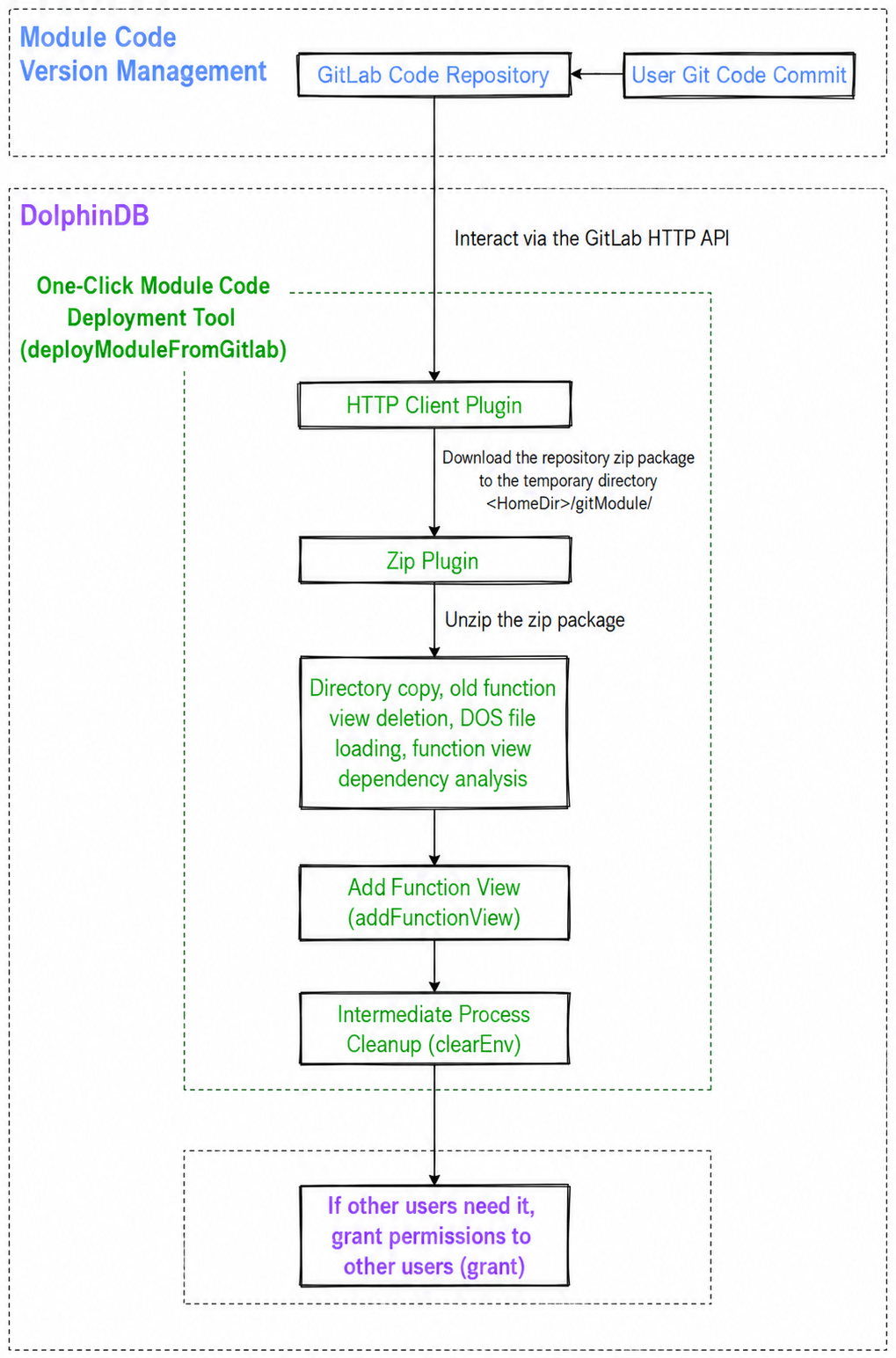
In the framework diagram, the one-click deployment tool for module code (shown in green) has been encapsulated as a function view (deployModuleFromGitLab), making it easier for business users to use while reducing the risk of errors. O&M personnel deploy this function view and grant business users permission to execute it. Business users can then deploy module code from GitLab with one click by calling this function view.
3. Initialize the One-Click Deployment Tool
This section describes how to initialize the one-click deployment tool to ensure that all required dependencies and configurations are in place before proceeding.
3.1 Dependencies and Configuration
Dependency 1: httpClient plugin
This plugin is not included in the server installation package and must be installed manually. The online installation steps are as follows:
login(`admin, yourAdminPwd) // Log in with an administrator account
installPlugin("httpClient") // Install online through the plugin marketplace
You can also manually download the plugin from the plugin marketplace and upload it to the server.
Dependency 2: zip plugin
This plugin is included in the server installation package and does not need to be installed.
Dependency 3: Configure preloading of the httpClient and zip plugins at node startup.
In cluster mode, the controllers, data nodes, and compute nodes must all be configured:
preloadModules=plugins::httpClient,plugins::zipDependency 4: Allow administrators to invoke the shell function.
The following must be configured on all nodes:
enableShellFunction=true3.2 Deploy deployModuleFromGitLab
In the appendix gitModule.dos, change the password of your administrator account, select all statements, and run them to register the deployModuleFromGitLab function view.
The following code grants test_user permission to execute deployModuleFromGitLab and to add function views:
login(`admin, yourAdminPwd) // Log in to the administrator account.
grant("test_user", VIEW_EXEC, `deployModuleFromGitLab)
grant("test_user", VIEW_OWNER)
3.3 deployModuleFromGitLab Interface Description
Function syntax:
deployModuleFromGitLab(gitLabSite, repoId, repoBranch, privateToken, timeout)The meanings of the parameters are as follows:
| Parameter Name | Parameter Description |
|---|---|
| gitLabSite | GitLab code repository URL |
| repoId | Project ID of the GitLab code repository |
| repoBranch | Branch name of the GitLab code repository, e.g., master or dev |
| privateToken | Personal access token |
| timeout | Connection timeout in milliseconds |
4. Standardized Usage Example for the One-Click Deployment Tool
This section assumes that the demo module code has been committed to the testModules code repository.
In this example, the DolphinDB user name is test_user. The module code is in the appendix demo.zip, and the demo directory hierarchy is shown in the figure below.
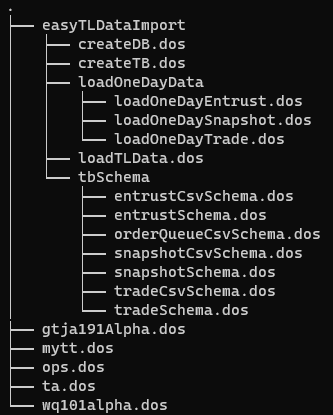
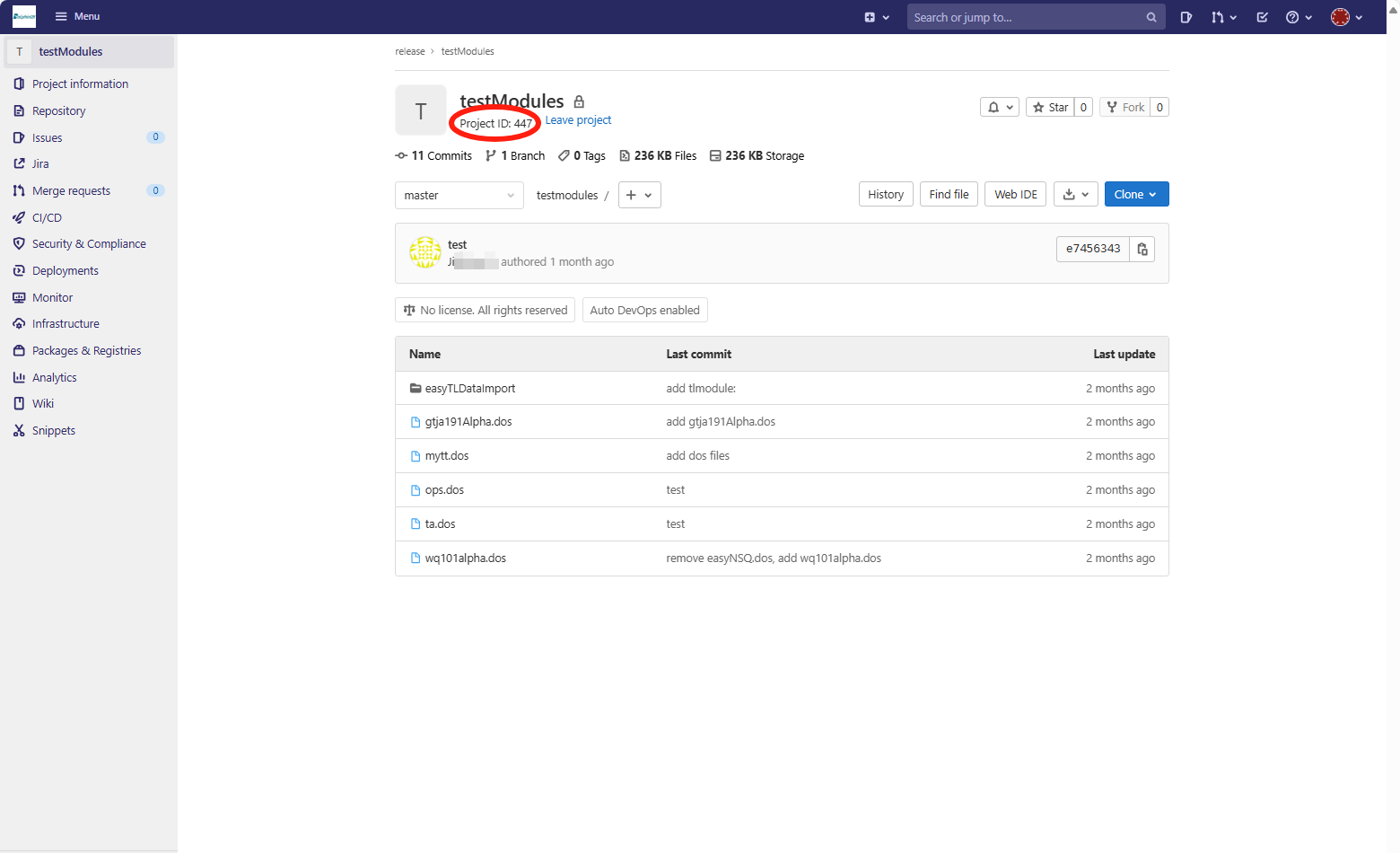
First, if you are deploying module code from a repository for the first time, obtain the repository's Project ID and generate a personal access token.
Example of obtaining the Project ID:
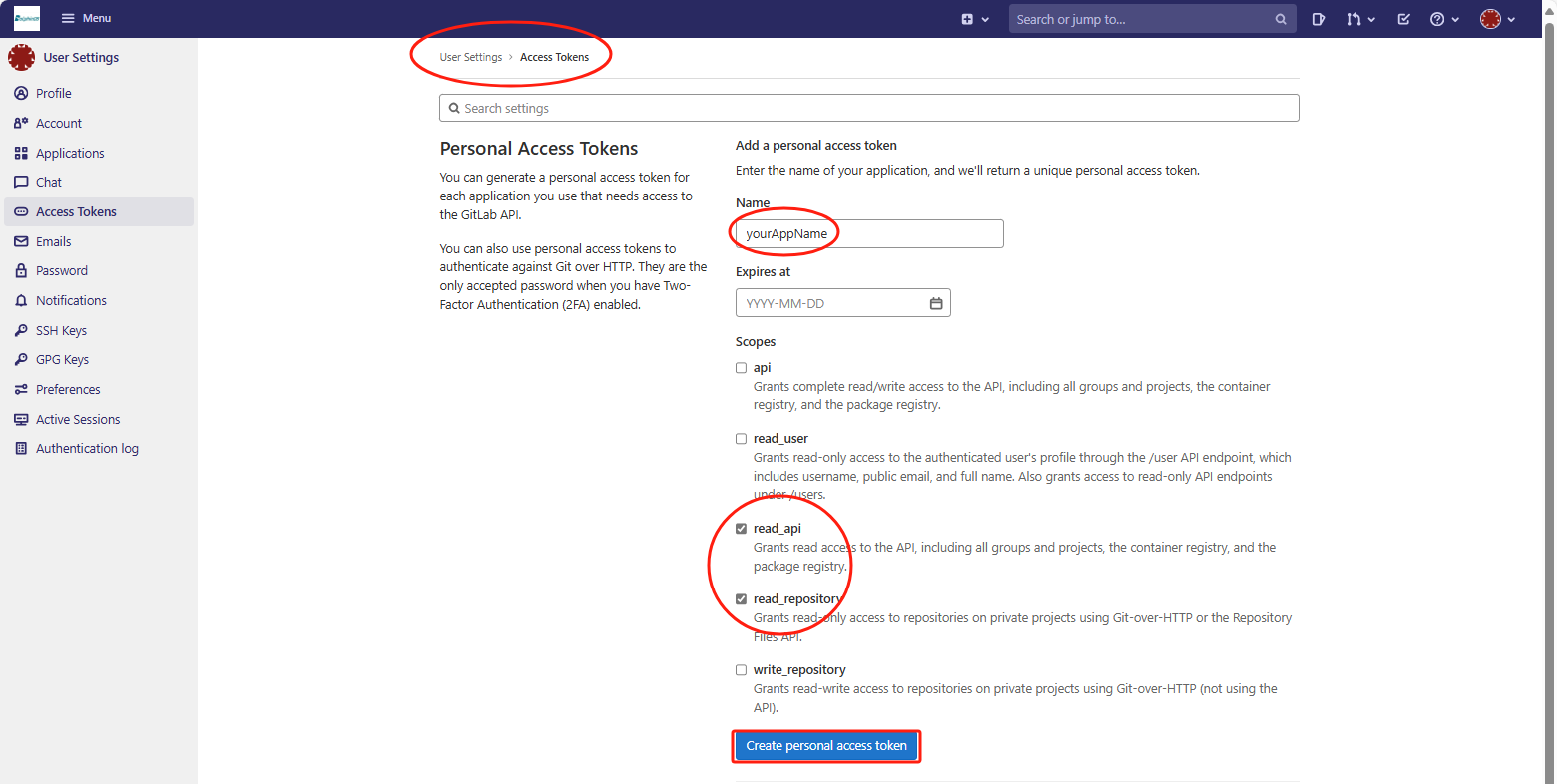
A personal access token can be generated in User Settings → Access Tokens, as shown in the following figure. For more details, refer to the official GitLab documentation on Project access tokens.
Deploy the module code as a function view.
Run the following code. When using this code, modify it according to your actual environment.
login(`test_user, yourPwd)

gitLabSite = "https://dolphindb.net" // GitLab repository URL
repoId = 447 // GitLab code repository ID
repoBranch = "master" // Branch name to deploy
privateToken = "xxxxxxxxxxxx" // Enter the actual personal access token
timeout = 1000000
deployModuleFromGitLab(gitLabSite, repoId, repoBranch, privateToken, timeout)
View the result after deployment.
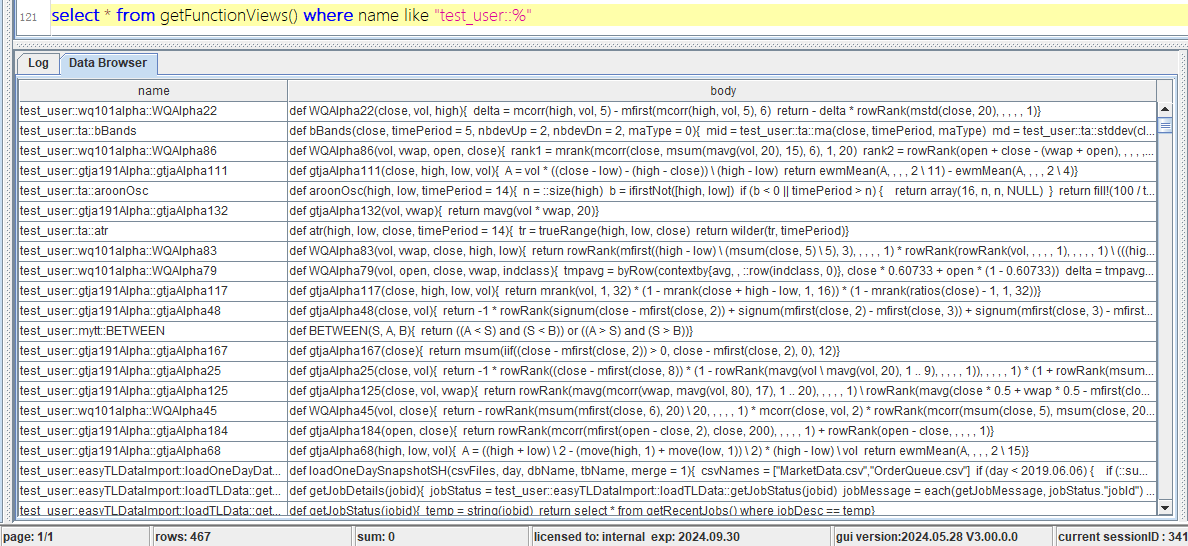
Use a function view:
test_user::mytt::ABS(-123)Grant other users permission to use a function:
grant(`test_user2, VIEW_EXEC, "test_user::mytt::ABS")5. Module Code Development and Management Specifications
To ensure proper operation of the one-click deployment tool, the following module code development and management specifications are defined. All specifications are mandatory.
5.1 Module Definition Specifications
- When declaring a module, the first level must be a user name, and this user name must be a DolphinDB user name. This is because each function in a module is eventually added as a function view, and this user name is the owner of the function view (VIEW_OWNER).
- When declaring a module, use the keyword
module; when referencing a module, use the keyworduse. The lines containing these two keywords must not have leading spaces. Example: If you want to create a module named ta and the user name is test_user, the module name is test_user::ta. Declare the module test_user::ta with the following script:
module test_user::taReference the module test_user::ta with the following script:
use test_user::ops5.2 Module Dependency Specifications
Modules may have unidirectional references only; cross references are not supported.
Example:
Partial contents of module test_user::ta:
module test_user::ta
use test_user::ops

//Function definitions are omitted here.
Partial contents of module test_user::ops:
module test_user::ops
use test_user::mytt

//Function definitions are omitted here.
In the code examples above, ta references ops, and ops references mytt. This is a unidirectional reference.
5.3 File Naming Conventions
The module name must match the corresponding .dos file name exactly.
Example: The .dos file name corresponding to module test_user::ta must be ta.dos.
5.4 Directory Hierarchy Conventions
The module name must match the corresponding directory hierarchy exactly.
Example: If the GitLab code repository name is testModules, the directory hierarchy corresponding to the module named test_user::easyTLDataImport::createDB must be testModules/easyTLDataImport/createDB.dos.
6. Common Issues and Solutions
This section lists some common issues and provides corresponding solutions.
Error 01: No access to view deployModuleFromGitLab.
- Cause: The current user does not have permission to execute the function view deployModuleFromGitLab.
- Solution: Contact the O&M personnel (administrators) to request permission. See Section 3.2 for how O&M personnel (administrators) grant permission.
Error 02: Only administrators or users with VIEW_OWNER permission can execute function addFunctionView.
- Cause: The current user does not have the VIEW_OWNER permission required to add function views.
- Solution: Contact the O&M personnel (administrators) to request permission. See Section 3.2 for how O&M personnel (administrators) grant permission.
Error 03: 404 Project Not Found.
- Cause: The Project ID of the GitLab code repository is incorrect.
- Solution: See Chapter 4 for how to obtain the Project ID.
Error 04: 401 Unauthorized.
- Cause: The current user's access token is incorrect.
- Solution: See Chapter 4 for how to obtain an access token.
Error 05: The user name or password is incorrect.
- Cause: The account or password in the function view deployModuleFromGitLab is incorrect.
- Solution: Contact the O&M personnel (administrators) to verify that the account and password in the function view deployModuleFromGitLab are correct.
Error 06: curl returns: Couldn't resolve host. Or curl returns: Failed to connect to xxx port xxx: Connection refused/No route to host.
- Cause: The GitLab code repository domain is incorrect, or there is a network problem.
- Solution: Contact the IT department to investigate.
Error 07: Cannot open "xxxx.zip" as zip file.
- Cause: You accessed the wrong website and downloaded the wrong file.
- Solution: Check whether the GitLab code repository domain is correct.
Error 08: The input function view must be a user defined function.
- Cause: The DolphinDB server version is lower than 2.00.11.
- Solution: Contact the O&M personnel (administrators) to upgrade to the latest stable version.
Error 09: Can't find module.
Possible causes and corresponding solutions:
- The referenced module name does not exist. Use the correct module name.
- The module name does not match the file name. See Chapter 5 to correct it.
- The module name does not match the directory hierarchy. See Chapter 5 to correct it.
7. Summary
As DolphinDB is increasingly used as a platform and business users develop more code, efficient, consistent, and secure management of module code becomes ever more important. The module code versions and permission management solution introduced in this tutorial is the result of deep insight into customer code development scenarios and has strong engineering value.