
Job Monitoring
The Job Monitoring tab enables monitoring and management of different jobs, including Factor, Factor Evaluation, Strategy Backtest, Attribution, Workflow, Data Import, and Visualization Template.
The system administrator has access to execution logs for all users' jobs within the cluster and can terminate any ongoing jobs. Regular users, however, can only view their own job execution logs and terminate only their own active jobs.
Factor
The Factor page shows execution history for all factors, including both private and public ones, along with those from batch tests and workflows. It shows details like test name, factor name, status, run time, start time, type, creator, and node.

Delete Execution Logs in Batch
Select the checkbox at the beginning of each record, then click Batch Delete to remove them in bulk. Note that this action can only be performed by a system administrator.

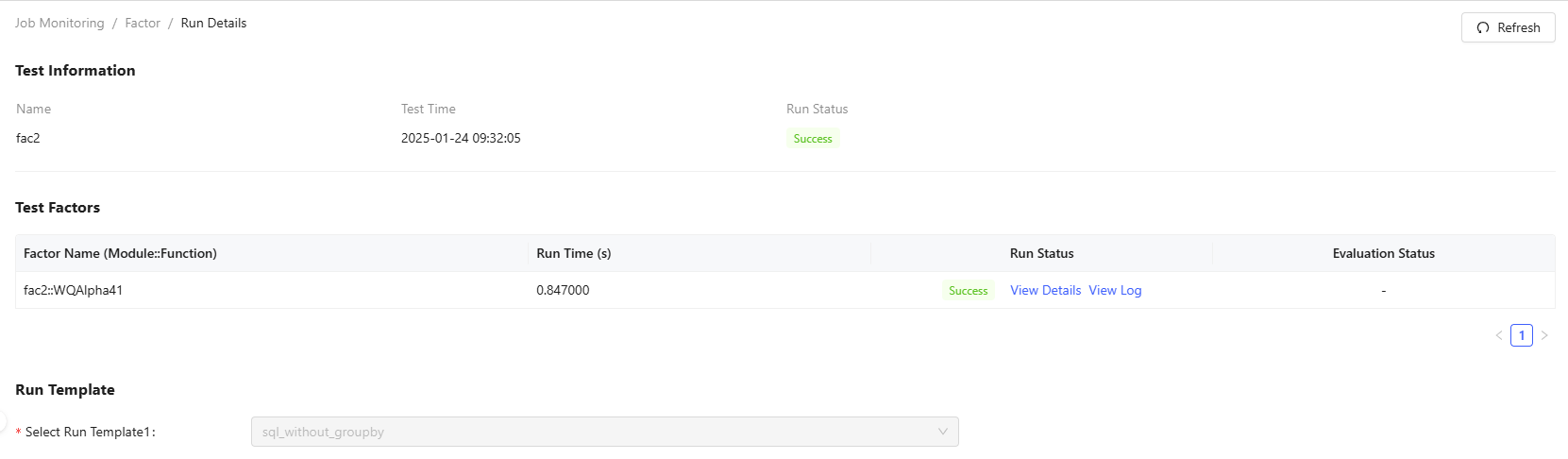
Check Detailed Test Info
Test creators can access complete run information by clicking the test name. This opens a detailed view showing run parameters, run template and execution log of tasks.
Terminate Jobs
A running job can be terminated by either the system administrator or the creator. When manually terminated, the job's status will be marked as "Failed”.

View Execution Logs
Select View Log to see the complete execution history of a job, which shows output messages and execution information. For jobs containing multiple tasks, you'll see a unified log that combines all subtask records into a single view.

Factor Evaluation
The Factor Evaluation page shows execution history for all evaluation templates, including those from workflows. It shows details like evaluation template, factor name, status, run time, start time, type, creator, and node.

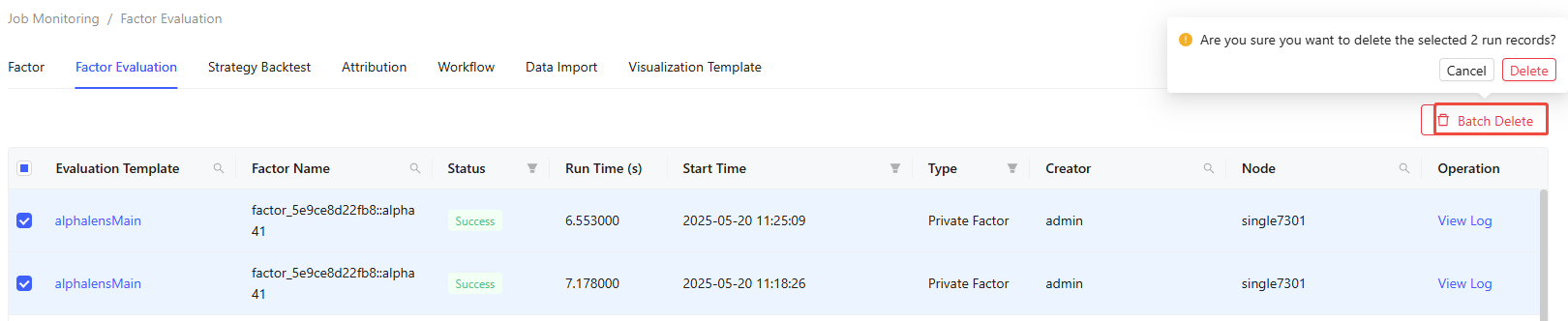
Delete Execution Logs in Batch
Select the toggle at the beginning of each record, then click Batch Delete to remove them in bulk. Note that this action can only be performed by a system administrator.
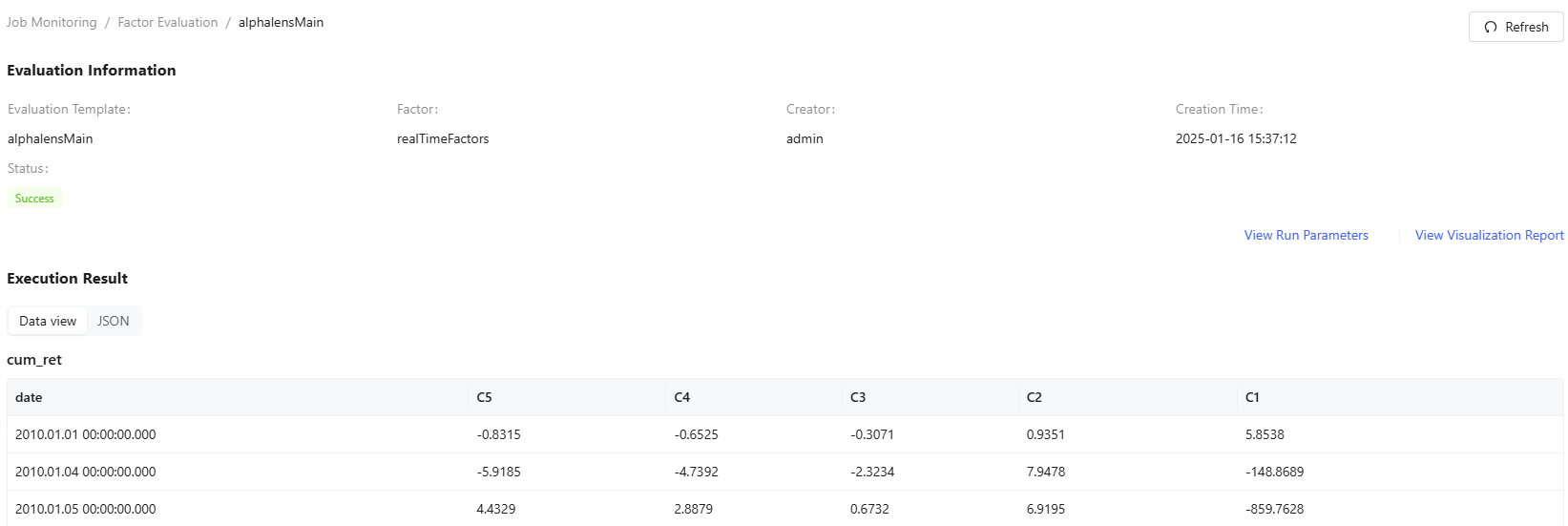
Check Detailed Evaluation Info
Template creators can access complete run information by clicking the templatename. This opens a detailed view showing evaluation result, run parameters and visualization report.
Terminate Jobs
A running job can be terminated by either the system administrator or the creator. When manually terminated, the job's status will be marked as "Failed”.
View Execution Logs
Select View Log to see the complete execution history of a job, which shows output messages and execution information. For jobs containing multiple tasks, you'll see a unified log that combines all subtask records into a single view.
Strategy Backtest
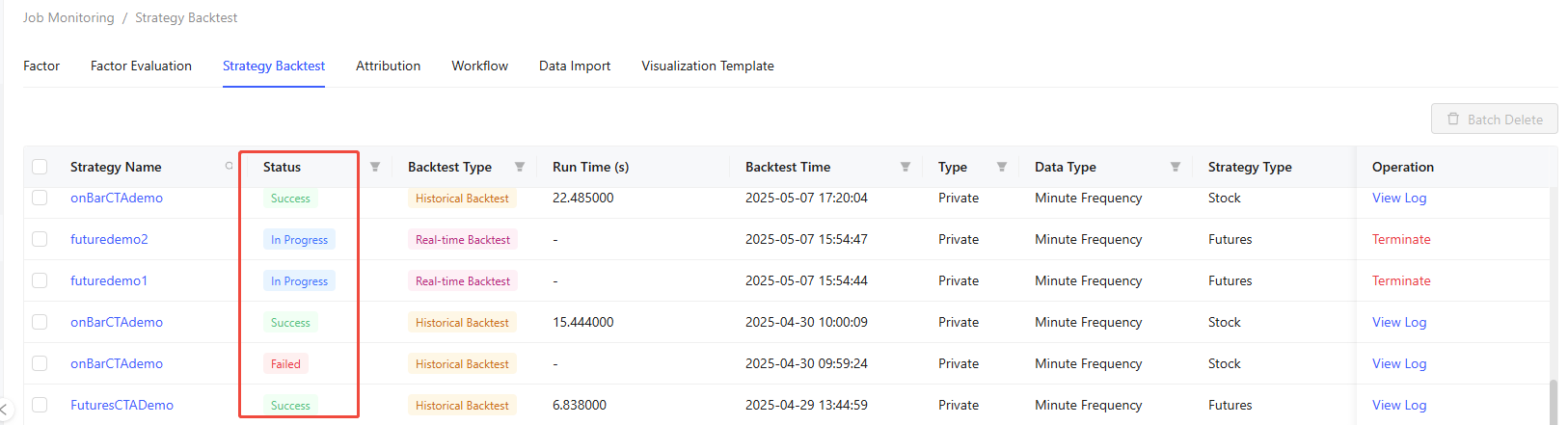
The Strategy Backtest page shows execution history for all backtesting strategies, including those from workflows. It shows details like strategy name, status, backtest type, run time, backtest time, type, data type, strategy type, creator, and node.
The status of historical backtests can be categorized as follows:
- Success: All backtest tasks are successfully executed.
- Partially Failed: At least one task fails.
- Failed: All tasks fail to run.
The status of real-time backtests can be categorized as follows:
- In Progress: The backtest is currently running.
- Terminated: The backtest has been terminated, but the backtest results and the strategy’s performance summary are retained.
- Backtest Results Deleted: The backtest results have been deleted, with only the strategy’s performance summary retained.
Delete Execution Logs in Batch
Select the toggle at the beginning of each record, then click Batch Delete to remove them in bulk. Note that this action can only be performed by a system administrator.

Check Detailed Backtest Info
Strategy creators can access complete run information by clicking the strategyname. This opens a detailed view showing backtest results and logs for each strategy task, run parameters and parameter optimization report.
Historical Backtest
The following figure shows the detailed view of historical backtest:
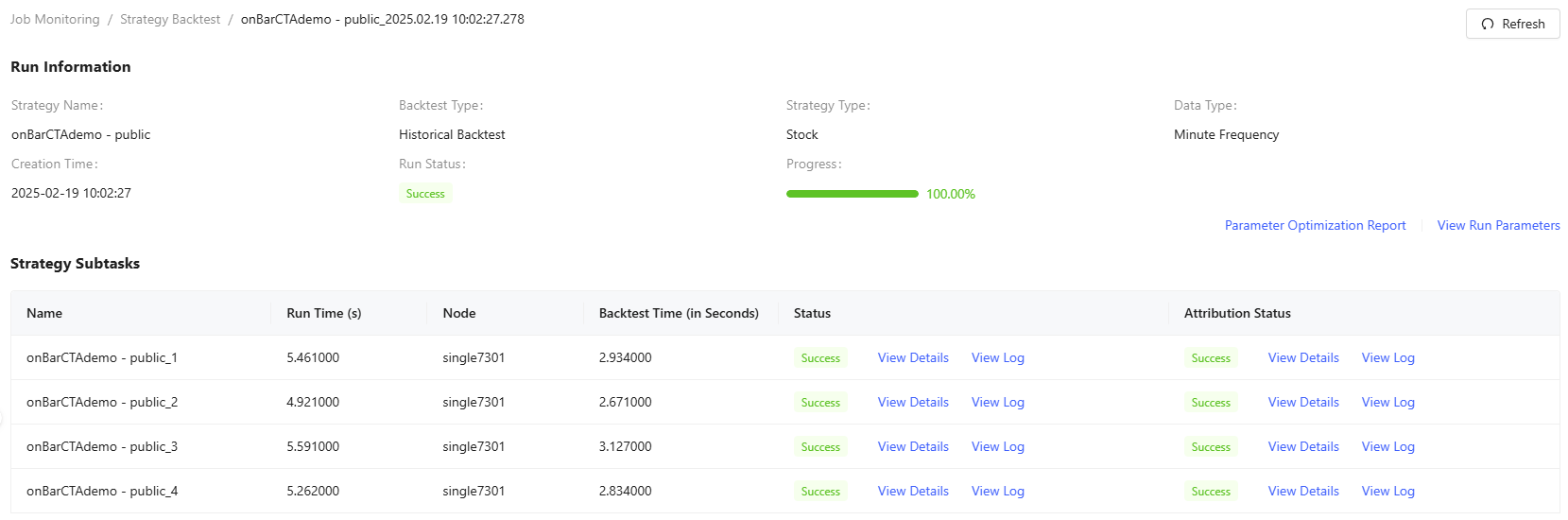
- To track the latest task status, click the Refresh button in the top-right corner.
- Run Information displays detailed backtest strategy information, including strategy name, backtest type, strategy type, data type, creation time, run status and progress.
- Strategy Subtasks lists result records containing information such as name, run time, node, backtest time, status, and attribution status.
- Click View Log to see the complete execution history of each task, which shows output messages and execution information.
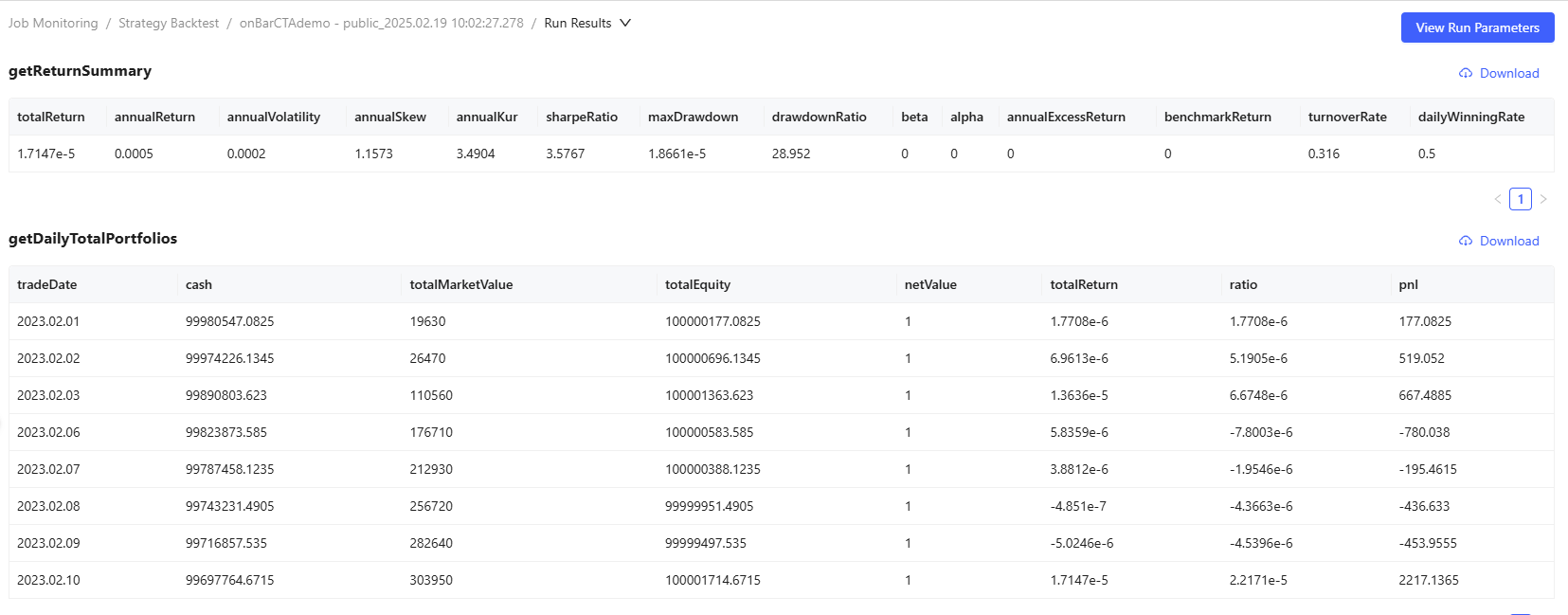
- Clicking View Details will lead you to the detailed run results.
- You can download the corresponding results by clicking Download in the top-right corner of each table.
- To view the parameters used during the backtest, click the View Run Parameters button in the top-right corner.
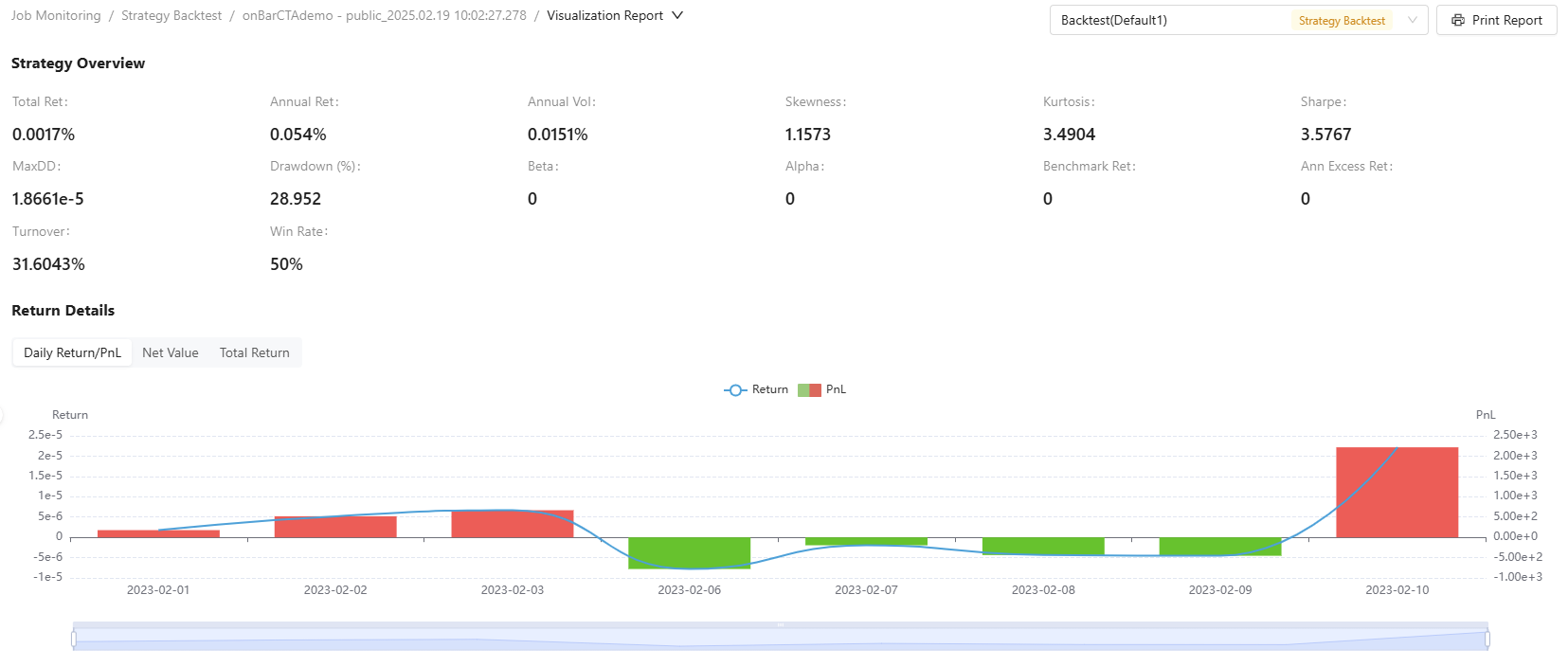
- Use the dropdown menu on the top to switch to the visualization report view. The visualization report includes six sections: overview, return details (covering daily returns, net value, and total returns), trade analysis (visualizing different signals), position details, account details, and order details. Each section displays the first 10 rows, with pagination available at the bottom to view more data. If there are more than 1000 records, data for a specific stock on a given day will be shown; otherwise, all available data will be displayed. You can filter by date or stock code. Additionally, you can choose a visualization template to present the data in different graphical formats.
Note:The Backtest(Default2) template features chart linking. Selecting data points in the return details charts automatically updates the order and position details. Likewise, clicking entries in these tables displays corresponding information in the trade analysis chart.
Real-Time Backtest
The following figure shows the detailed view of real-time backtest:
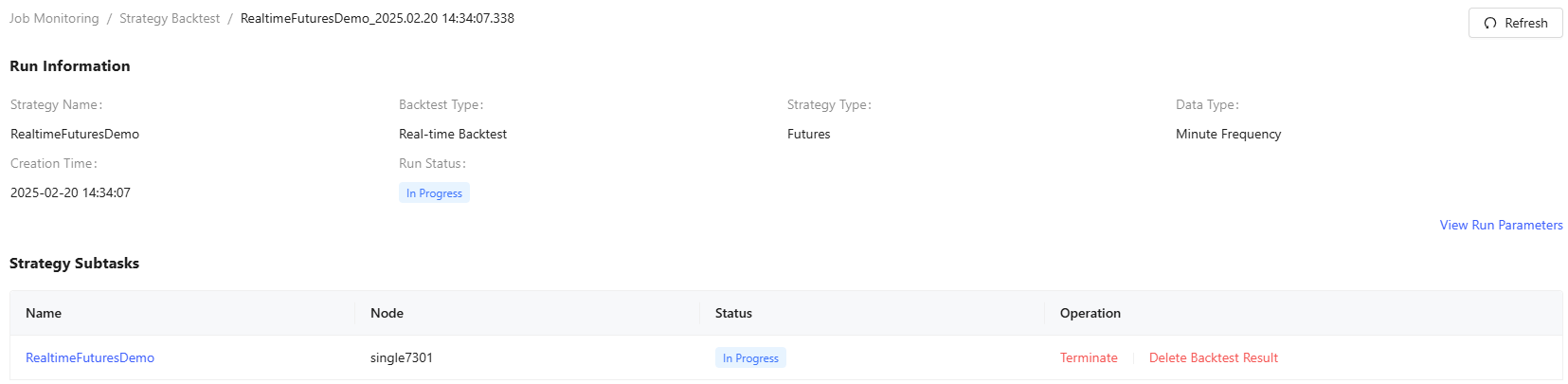
- To track the latest task status, click the Refresh button in the top-right corner.
- Run Information displays detailed backtest strategy information, including strategy name, backtest type, strategy type, data type, creation time, run status.
- Strategy Subtasks lists result records containing information such as name, run time, node, backtest time, status, and attribution status.
- Clicking the strategy name will lead you to the real-time visualization reports for this task. You can set the polling interval and row limit in the upper right corner. The trading analysis charts will only appear after you select a stock code. For both running and terminated real-time backtesting tasks, you can check the "Stream Table Information" to see the names of market data stream tables and all result stream tables used in this task.
Terminate Jobs
A running job can be terminated by either the system administrator or the creator. When manually terminated, the job's status will be marked as "Failed”.
View Execution Logs
Select View Log to see the complete execution history of a job, which shows output messages and execution information. For jobs containing multiple tasks, you'll see a unified log that combines all subtask records into a single view.

Attribution
The Attribution page shows execution history for all attributions, including those from workflows. It shows details like attribution template, status, run time, creation time, creator, and node.

Delete Execution Logs in Batch
Select the toggle at the beginning of each record, then click Batch Delete to remove them in bulk. Note that this action can only be performed by a system administrator.

Check Detailed Attribution Info
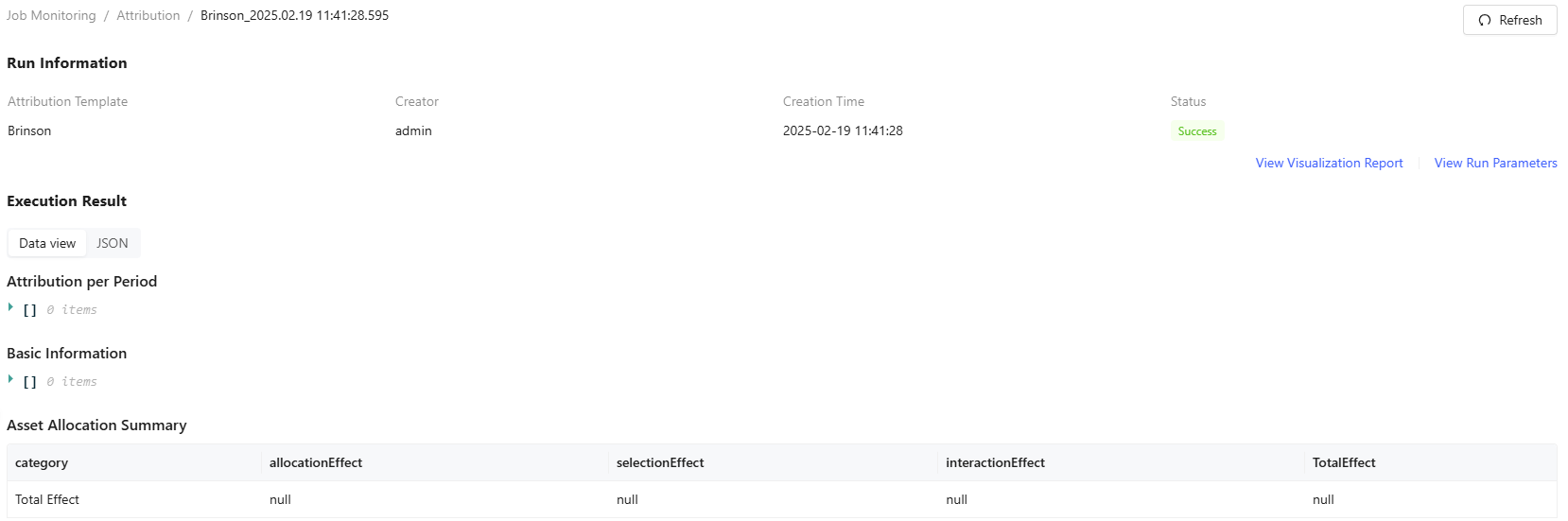
Template creators can access complete run information by clicking the templatename. This opens a detailed view showing attibution result, run parameters and visualization report.
Terminate Jobs
A running job can be terminated by either the system administrator or the creator. When manually terminated, the job's status will be marked as "Failed”.
View Execution Logs
Select View Log to see the complete execution history of a job, which shows output messages and execution information. For jobs containing multiple tasks, you'll see a unified log that combines all subtask records into a single view.
Workflow
The Workflow page shows execution history for all workflows. It shows details like name, status, run time, creation time, creator, and node.

Delete Execution Logs in Batch
Select the toggle at the beginning of each record, then click Batch Delete to remove them in bulk. Note that this action can only be performed by a system administrator.

Check Detailed Workflow Info
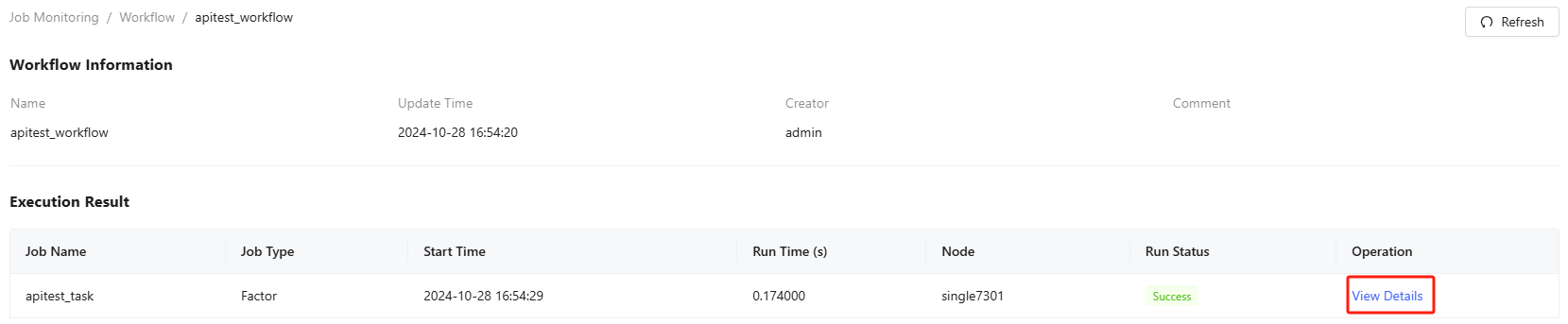
Workflow creators can access complete run information by clicking the workflowname. This opens a detailed view showing a comprehensive breakdown of results for each job, including specifics and any errors.
Terminate Jobs
A running job can be terminated by either the system administrator or the creator. When manually terminated, the job's status will be marked as "Failed”.
View Execution Logs
Select View Log to see the complete execution history of a job, which shows output messages and execution information. For jobs containing multiple tasks, you'll see a unified log that combines all subtask records into a single view.
Data Import
The Data Import page shows execution history for all data imports, including those from workflows. It shows details like name, status, run time, start time, creator, and node.

Delete Execution Logs in Batch
Select the toggle at the beginning of each record, then click Batch Delete to remove them in bulk. Note that this action can only be performed by a system administrator.

Check Detailed Import Info
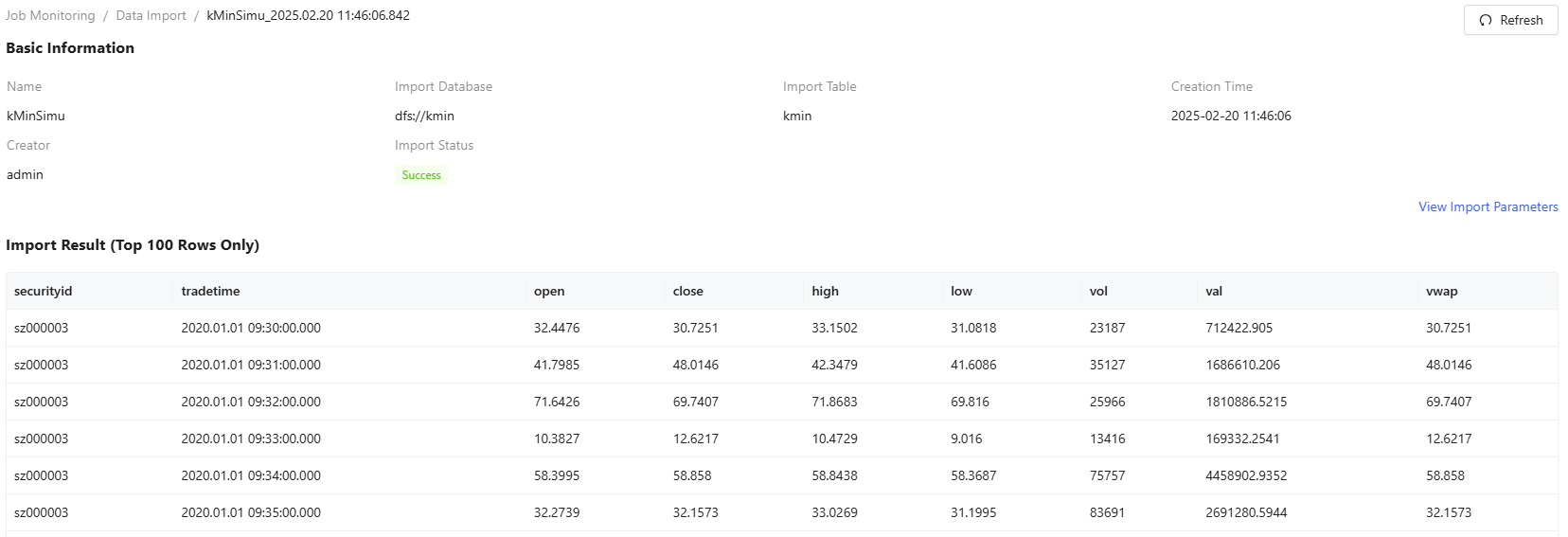
Data Import creators can access complete run information by clicking thename. This opens a detailed view showing import results and import parameters.
Terminate Jobs
A running job can be terminated by either the system administrator or the creator. When manually terminated, the job's status will be marked as "Failed”.
View Execution Logs
Select View Log to see the complete execution history of a job, which shows output messages and execution information. For jobs containing multiple tasks, you'll see a unified log that combines all subtask records into a single view.
Visualization Template
The Visualization Template page shows execution history for all visualization jobs, including those from workflows. It shows details like name, status, run time, creation time, data type, creator, and node.

Delete Execution Logs in Batch
Select the toggle at the beginning of each record, then click Batch Delete to remove them in bulk. Note that this action can only be performed by a system administrator.
Check Detailed Visualization Info
Template creators can access complete run information by clicking thetemplate name. This opens a detailed view showing execution result, run parameters, and visualization report.
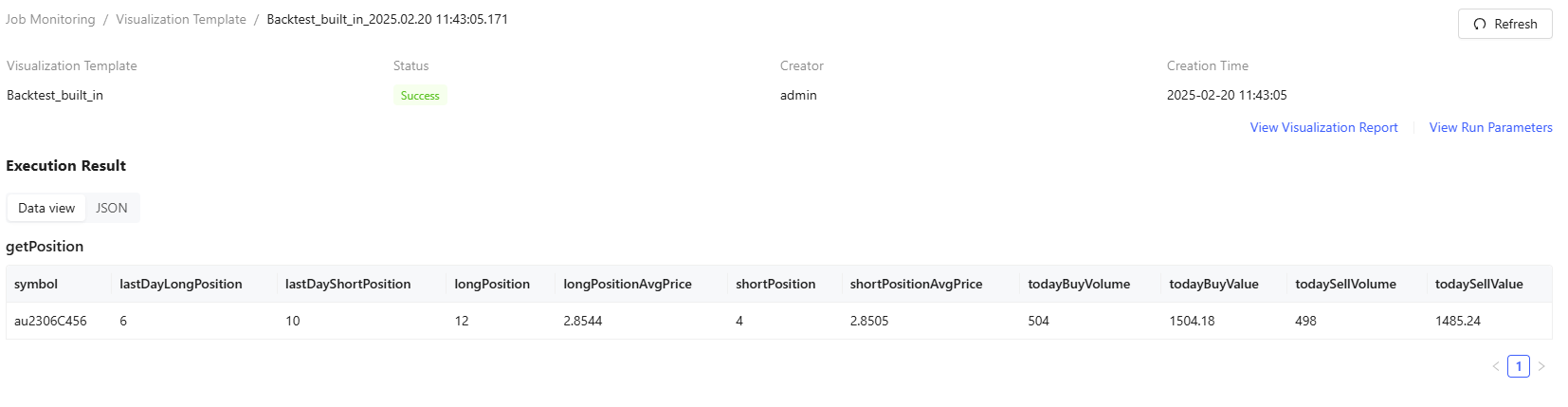
Click View Visualization Report to view the data visualizations. The detailed page is as follows:

- You can print the reports by clicking Print Report in the top-right corner.
- Use the dropdown menu to switch to the data source view. Each section displays the first 10 rows, with pagination available at the bottom to view more data.
Terminate Jobs
A running job can be terminated by either the system administrator or the creator. When manually terminated, the job's status will be marked as "Failed”.
View Execution Logs
Select View Log to see the complete execution history of a job, which shows output messages and execution information. For jobs containing multiple tasks, you'll see a unified log that combines all subtask records into a single view.