System Management
The System Management module manages users, departments and their permissions. Administrators can group users by department, facilitating independent access control and data isolation.
In Starfish, administrators are divided into system administrator (admin) and department administrators:
- System administrator (admin) manages all users and departments, with permissions to create, delete, activate, and deactivate user accounts.
- Department administrators manage departmental permissions for users within their department.
Permissions are also divided into system permissions and departmental permissions.
- System Permissions
- Data import permissions allow users to perform data imports via Data Management > Data Import Templates.
- Review permissions allow users to review publishing requests submitted to the system.
- Departmental Permissions
- Factor library permissions allow users to access Public Library.
- Strategy permissions allow users to access Strategy & Backtest.
- Review permissions allow users to review publishing requests submitted to the department.
User Management
This tab is only accessible to system administrators (admin) and department administrators.
System Administrator Access
When accessed by an admin, this page displays information about all users in the cluster, including username, department, activation time, permissions, status, etc. The admin can activate, deactivate, delete users, or reset passwords.

- Create: Create a new user.
- Deactivate: Users created through the platform are allowed to use the platform by default. Clicking Deactivate prohibits the user from accessing the platform. The system would clear deactivated users’ department information and departmental permissions.
- Activate: Users created through other methods (e.g., via
createUser) are deactivated by default and cannot use the platform. Clicking Activate allows them to access the platform and changes their status to “Activated”. - Batch Activate: Activate multiple selected users.
- Change Password: Reset the password for an activated user.
- Delete: Delete the user from the current cluster. The user’s private code is also deleted, and any publicly shared content or review records are marked as “unlicensed.”
Edit User Information
Clicking a username to modify the user’s department and permissions.
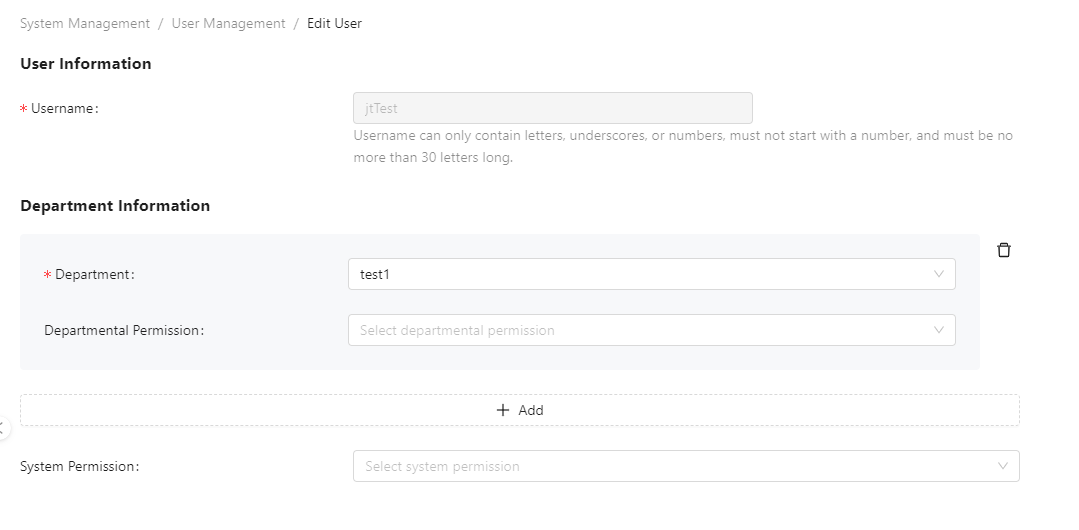
- Department Information: Include the user’s department and
departmental permissions. A user can belong to multiple departments, with
permissions independent across departments.
- Department: Set the user’s department.
- Departmental Permission: Set the user’s departmental permissions.
- Add: Add a new department for the user and set their permissions within that department.
- System Permission: Set system permissions for the user.
Department Administrator Access
When accessed by a department administrator, this page displays information about all users in the department. Department administrators can edit user’s departmental permissions.
Department Management
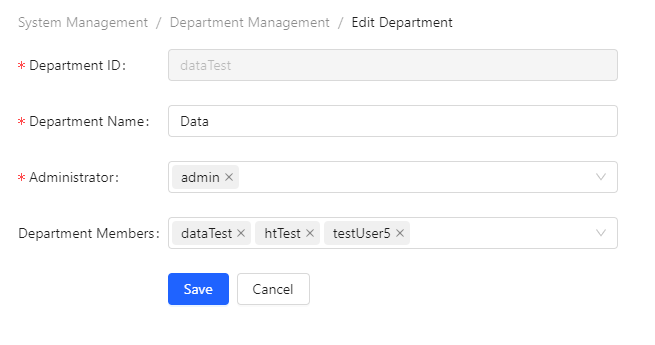
This page is accessible only to system administrators (admin). It displays information about all departments, including department ID, name, creation time, members, and administrators. The admin can create, delete, and edit departments.

- Create: Create a new department.
- Delete: Delete the department.
Clicking a specific department ID will open a department information editor where the department name, administrators, and members can be modified.