
Factors & Evaluation
The Factors & Evaluation page manages private factor scripts, calculates factors, and evaluates factor performance.
My Factors
This page displays all private factor modules of the user, including module name, factors contained in the module, properties, tags, execution count, creation time, update time, comment, etc. Users can manage their private factors on this page. The content on this page is only visible and editable by the creator.

- Create: Open the Create Factor Module window.
Create Factor Modules
Click Create to create a new factor module.
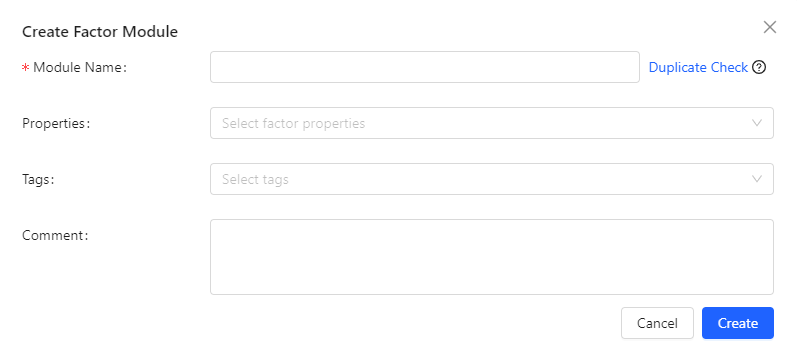
Fill in the information to create a factor module:
- Module Name: Enter the factor module name. It must not duplicate any existing module name.
- Duplicate Check: Check if a module with the same name exists in the Public Library > Factor Library.
- Properties: Set the properties of the factors in the module for matching with templates.
- Tags: Set tags for the factor module.
- Comment: Add comments for the factor module.
Edit Factor Modules
Click a module name, or click Create after the new module creation to open the module editor.
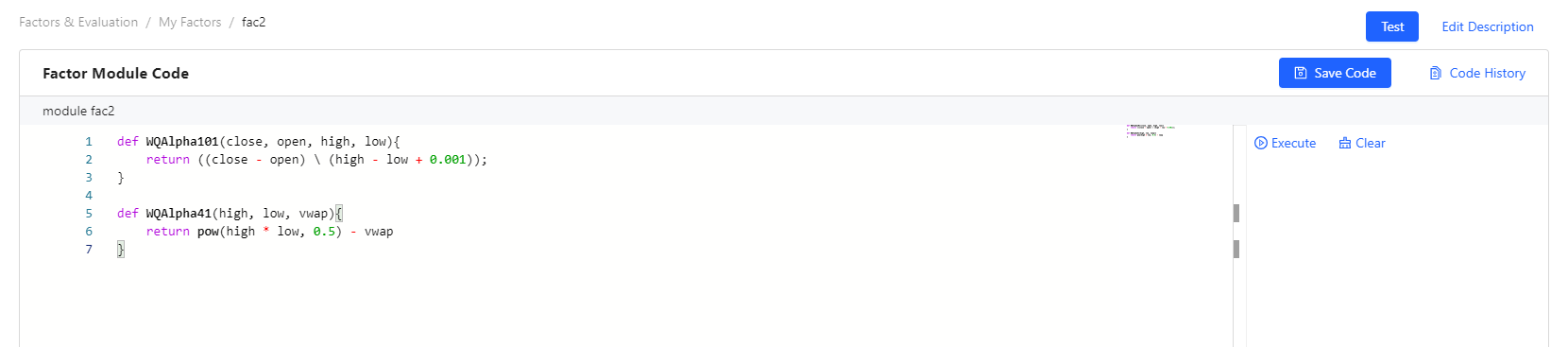
Users can edit the factor code in the module in the left editing area. The gray background header is automatically generated and fixed by the system, declaring the module according to the factor module name.
- Test: Test factors in this module.
- Edit Description: Modify the basic information of the factor module.
- Save Code: Save the current code in the editing area.
- Code History: Check the last five saved code versions. Any two versions can be compared.
- Execute: Execute the selected code in the editing area, or use the
shortcut
Ctrl+E. Note that this operation does not return execution results. You can use theprintfunction to output results to the right output area. - Clear: Clear historical outputs.
Test Factors
Click Test to open the Test Parameter Configuration window.
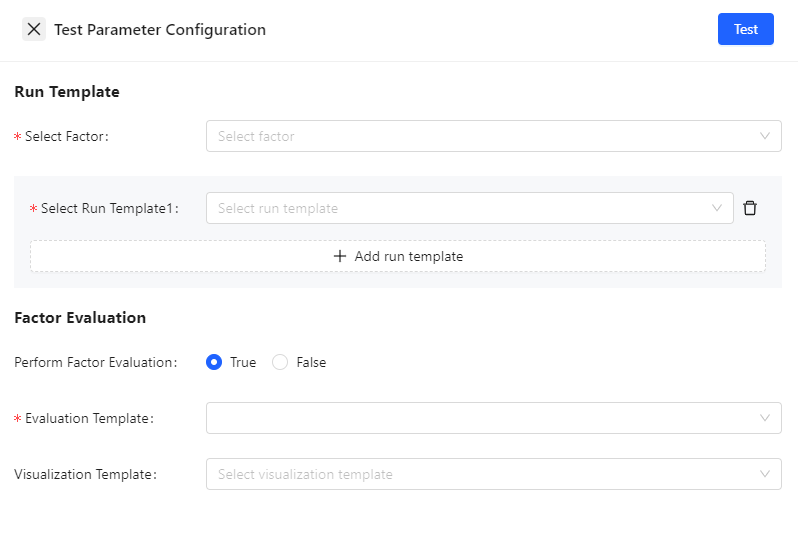
Fill in the parameter configuration for testing factors.
- Select Factor: Select the factor(s) to test. You can select the entire module or some factors in the module.
- Select Run Template: Select run template(s). Hovering over a template in the dropdown menu displays its comments. When selecting multiple templates, subsequent templates can use the calculation results of previous templates, with the final result returned by the last template.
- Use preset: Use a preset parameter configuration.
- Save preset: Save the parameter configuration and bind it to the template. Please specify a unique name for the preset when saving it.
- Import: Import a JSON file that contains the parameter configuration locally.
- Export: Export the current configuration to local in JSON file format.
- Perform Factor Evaluation: To perform factor evaluation during testing, True must be ticked. When selecting True, an evaluation template must be chosen. Evaluation templates also support selecting/saving presets, importing/exporting configurations. Users can also set visualization templates to output evaluation results and generate reports.
Publish Factor Modules
The Publish button under the Operation column submits publishing requests to the department where the user belongs to.
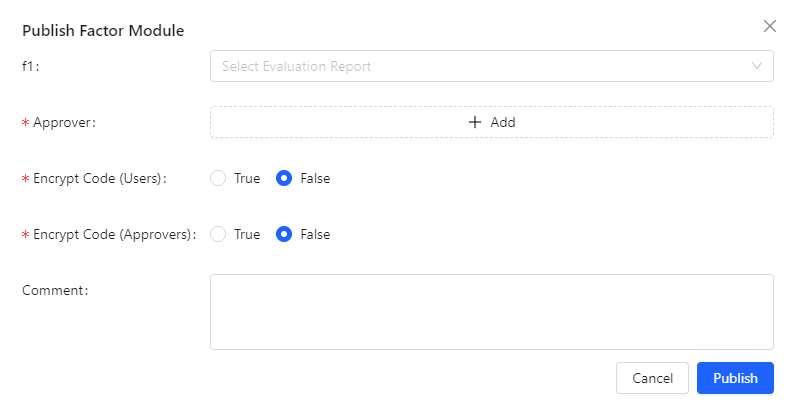
- Select Evaluation Report: Select a factor module evaluation report for the approver to review.
- Approver: Select the department and approver for publishing. If the module has been published before, and this is a republish after modification, the department from the initial publish is mandatory.
- Encrypt Code (Users): Other users can only call the published factor module but cannot view its source code.
- Encrypt Code (Approvers): Approvers cannot view the source code during the approval process.
Delete Factor Modules
The Delete button under the Operation column deletes the current factor module.
The Batch Delete button deletes multiple selected modules.
Run Templates
This page displays the current user's private run templates, including template name, properties, tags, creator, creation time, update time, comment, etc. Users can manage their factor run templates on this page. The content on this page is only visible and editable by the creator.

- Create: Open the Create Run Templatewindow.
Create Run Templates
Click Create and fill in the information to create a run template:
- Template Name: The template name. It must not duplicate any template name.
- Properties: Set the properties of the factors in the template for matching with factor modules.
- Tags: Set tags for the template.
- Comment: Add comments for the template.
Edit Run Templates
Click a template name, or click Create after the new template creation to open the template editor.
Detailed explanation can be referred to at Edit Factor Modules.
Delete Run Templates
The Delete button under the Operation column deletes the current template.
The Batch Delete button deletes multiple selected templates.
Evaluation Templates
This page displays all evaluation templates written by users with factor module permissions in the current cluster, including template name, tags, execution count, creation time, update time, creator, comment, etc. Users can evaluate factor performance and implement factor evaluation on this page.

- Create: Open the Create Evaluation Template window.
Create Evaluation Templates
Click Create and fill in the information to create an evaluation template:
- Template Name: The template name. It must not duplicate any template name.
- Tags: Set tags for the template.
- Comment: Add comments for the template.
Edit Evaluation Templates
Click a template name, or click Create after the new template creation to open the template editor.
Detailed explanation can be referred to at Edit Factor Modules.
Evaluate Factors
Click the Run button under the Operation column and fill in parameters to run the evaluation template.
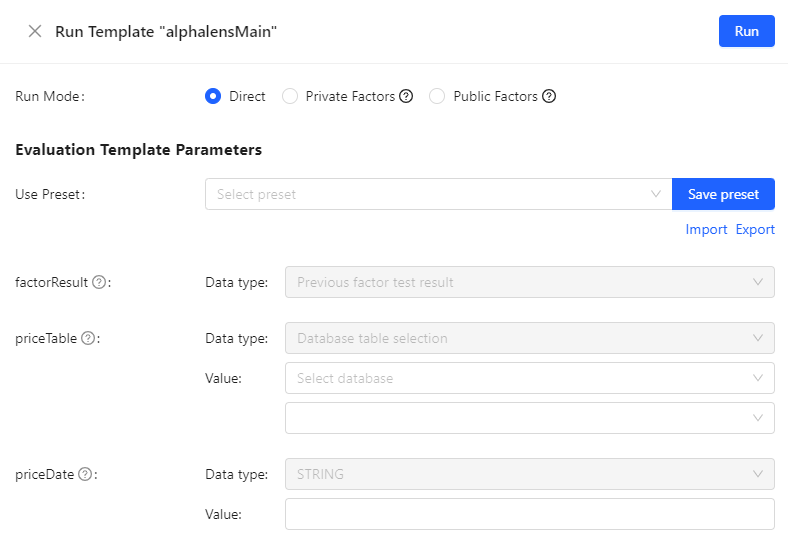
- Run Mode:
- Direct: Directly run the evaluation template.
- Based on Private Factors: Run factor evaluation after completing factor calculations based on private factors.
- Based on Public Factors: Run factor evaluation after completing factor calculations based on public factors.
- Evaluation Template Parameters: Set data types and values based on the evaluation template parameters. Built-in templates have fixed data types.
- Save preset: Save the parameter configuration and bind it to the template. Please specify a unique name for the preset when saving it.
- Import: Import a JSON file that contains the parameter configuration locally.
- Export: Export the current configuration to local in JSON file format.
- Visualization Template: Select a visualization template to output evaluation results and generate reports.
View Template Code
Use the View Code button to check the source code of the evaluation template.
Delete Evaluation Templates
The Delete button under the Operation column deletes the current template.
The Batch Delete button deletes multiple selected templates.